Netflix Keyboard Shortcuts for Language Learners (2026)
Netflix's help page lists 9 keyboard shortcuts and none for subtitles. Here is the full list, plus extension keys to repeat a line, go back one line and pause after each.

Netflix's built-in keyboard shortcuts are Space or Enter (play/pause), F (full screen), Esc (exit full screen), Left and Right arrows (10 seconds back or forward), Up and Down arrows (volume), M (mute) and S (skip intro), and none of them move by subtitle line. For line-by-line study you need an extension key set, usually A for the previous line, S to repeat the current line and D for the next one.
A 10-second jump rarely lands where a sentence starts. This guide separates native keys from learner keys, shows where they collide, and ends with a 20-minute keyboard-only routine.
Last tested: November 2026.
How we tested: On 7 November 2026 we checked every native key against Netflix's official shortcut page. We then ran our own extension (v0.32.5) in Chrome 157 on macOS, automated with Playwright, on our fake Netflix test page: a 60-second test clip with 16 subtitle lines (0.8 s to 55.0 s), each 2.4 to 3.0 seconds long. Paused at 12.0 s, S landed at 10.2 s and A at 7.0 s, and the video stayed paused. R resumed the line at 0.75x. Auto-pause stopped on 16 of 16 lines. S, A, D and R never reached the page's own key listener. Other extensions' keys come from their help pages and store listings, labeled that way. We did not test on a TV, phone, Firefox or Safari.
All Netflix keyboard shortcuts (official list)
Netflix's help page says the shortcuts help you "control Netflix from your keyboard while watching on your computer" and lists nine actions (Netflix Help Center). Here they are, with a column on how useful each one is during a study session.
| Action | Key | Useful for study? |
|---|---|---|
| Play / Pause | Space or Enter | Yes, the key you will press most |
| Full screen | F | Sometimes: hides your notes window |
| Exit full screen | Esc | Yes, to jump back to your notes or flashcards |
| Rewind 10 seconds | Left arrow | Partly: lands mid-sentence most of the time |
| Fast forward 10 seconds | Right arrow | Rarely |
| Increase volume | Up arrow | Yes, for fast or mumbled lines |
| Decrease volume | Down arrow | Rarely |
| Mute | M | Yes, for shadowing (repeating a line out loud) over a silent replay |
| Skip intro | S | Yes, unless an extension takes over S (see below) |
What the list does not contain is just as useful to know. There is no official key for playback speed, for switching subtitles on or off, or for moving to the previous or next subtitle line (Netflix Help Center). If a guide promises one of those as a "Netflix shortcut", it is describing an extension.
Shift + Left or plain Left?
Some older guides tell you to hold Shift. A 2016 Cult of Mac article said: "To rewind 10 seconds at a time, hold the Shift key down on your keyboard while pressing the Left Arrow key" (Cult of Mac, 2016). Netflix's current page lists the plain Left arrow for "Rewind 10 seconds", and so did Candid Technology's list, last updated in 2020 (Candid Technology). Use plain Left; the Shift advice is a leftover from an older player.
Netflix's page also notes that the Space bar and Esc work in the Windows 10 and Windows 11 app. It does not say the other keys work there, and back in the Windows 8 days the app supported only one shortcut, the Space bar (Make Tech Easier). For study, use Netflix in Chrome rather than the app.
Why Netflix's 10-second rewind is clumsy for language practice
The Left arrow jumps a fixed 10 seconds, no matter where the sentence you missed began. Dialogue does not line up with 10-second blocks, so the jump nearly always lands in the middle of an earlier line and you replay two or three lines to hear one.
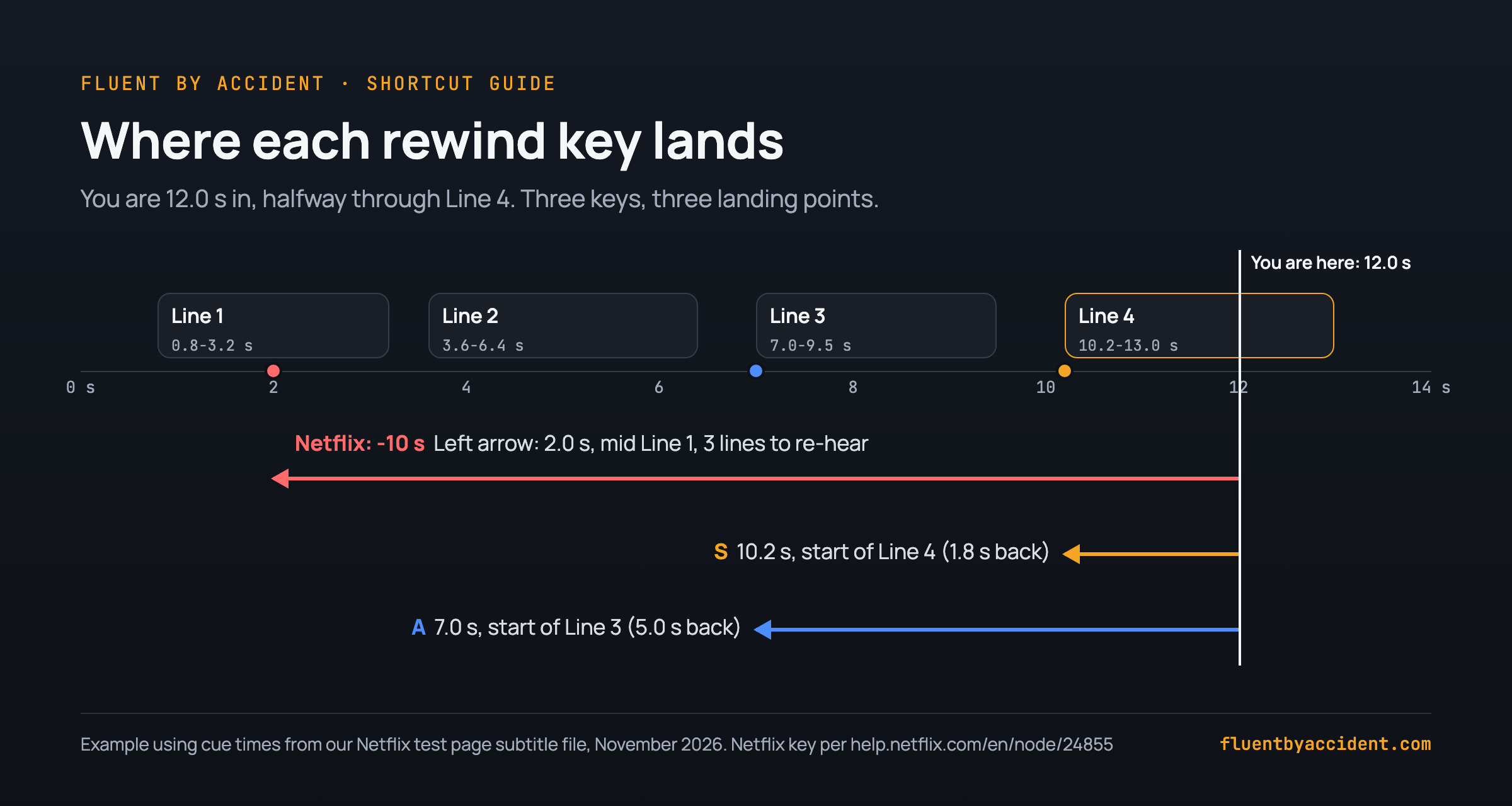
Here is a worked example using the real cue times from our test page's subtitle file. Say you are 12.0 seconds in, halfway through line 4, which started at 10.2 seconds.
| Key | Lands at | Seconds back | What you hear |
|---|---|---|---|
| Left arrow (Netflix) | 2.0 s, middle of line 1 | 10.0 | The end of line 1, then lines 2 and 3, before line 4 again |
| S (extension: repeat) | 10.2 s, start of line 4 | 1.8 | Line 4 from its first word |
| A (extension: previous) | 7.0 s, start of line 3 | 5.0 | Line 3 from its first word, then line 4 |
In this example the Left arrow costs you about 8 extra seconds of listening per replay. That sounds small until you replay 40 lines in an episode: under these assumptions it adds up to 40 × 8 = 320 seconds, a little over 5 minutes of re-hearing lines you already understood. If you follow the dual subtitle method for Netflix, where you pause on every line you do not get, line jumps are the difference between a smooth session and a fiddly one.
Shortcuts to repeat a subtitle line on Netflix (extensions compared)
Netflix has no repeat-line key, so every learner extension adds its own. Most of them settled on the same A / S / D layout, which is handy if you switch tools. The table lists what each one documents; where we could not open the page itself, we say so.
| Extension | Previous line | Repeat line | Next line | Extra keys | Source |
|---|---|---|---|---|---|
| Fluent by Accident (we make this one, so weigh our take accordingly) | A | S | D | R = replay the line at 0.75x, T = show the hidden translation, W = save the word in the open popup, Esc = close the popup | Verified in extension source, v0.32.5 |
| Language Reactor | A | S | D | "More keyboard shortcuts are in the settings" | Help page (search snippet) |
| FlixFluent | A | S (replay) | D | Auto-pause and speed control | Per store listing |
| EasySubs | Not listed | Right arrow (replays the last sentence) | Not listed | Not listed | Per add-on listing |
Two more tools are worth knowing even though they are not subtitle tools. The Netflix Keyboard Shortcut extension for Chrome says it "adds 30+ configurable keyboard shortcuts to control playback and more" (Chrome Web Store). Netflix Rewind 1 sec for Firefox rewinds 1 second per key press, and its listing says the number of seconds can be changed on its Options page (Firefox Add-ons).
The keys in our extension have a few conditions, all checked in the source code. They only work while the video is open and the extension's subtitles are loaded. They also pause while a word popup is open; press Esc to close it first. They are ignored when you hold Ctrl, Cmd or Alt, and when you are typing in a text field, so a search box will not trigger a replay. The extension lists them in the player's settings menu under "Shortcuts", with the line "Press these keys while the video is playing."
For a full feature comparison beyond the keys, see the Netflix dual subtitle extensions we compared.
How to make Netflix pause after each subtitle
Netflix itself cannot pause after each subtitle; there is no setting or key for it on the official page (Netflix Help Center). Learner extensions can. Language Reactor's help page, as indexed by search, says it "can automatically pause playback at the end of every subtitle" (Language Reactor), and FlixFluent's store listing promises to "pause after each subtitle" (Chrome Web Store).
In our extension the switch is called "Pause after each line" and it is off by default. Per the source, it pauses about 0.12 seconds before the line disappears, so the text is still on screen while you read it. On our 60-second test clip with 16 lines, it stopped 16 times in Chrome, once per line.
Auto-pause pairs well with the line keys:
- The video stops at the end of a line.
- Press S to jump back to the start of the line, then Space to hear it again. It pauses again at the end.
- Press R if it was too fast. It replays at 0.75x, and the speed goes back to 1x once the line ends.
- Press Space to continue, or D then Space to skip to the next line.
Tip: Turn auto-pause off for scenes you already understand, such as action sequences or songs. Stopping 16 times a minute is useful for study and tiring for anything else.
Shortcut conflicts: when S stops skipping the intro
Netflix uses S for "Skip intro" (Netflix Help Center). Learner extensions use S for "repeat line". They can't both win. In our extension's case the source settles it: the extension catches A, S, D and R (and T when the hidden-translation setting is on) before Netflix sees them, so while its subtitles are loaded S repeats the line and does not skip the intro. Netflix's other keys (Space, Enter, the arrows, F, M, Esc) keep working. While a word popup is open, Esc closes the popup instead of exiting full screen.
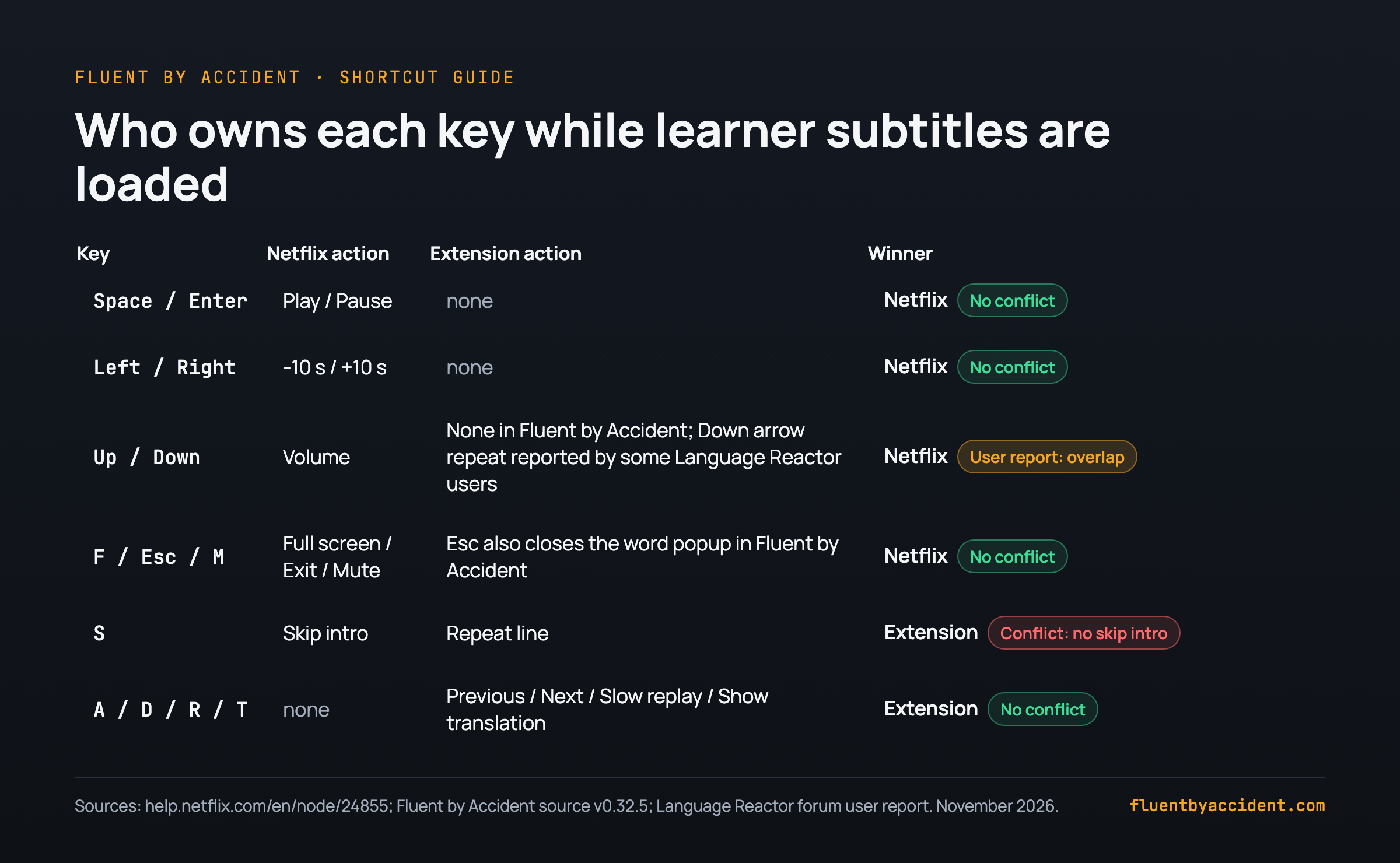
Fix: To skip an intro while a learner extension owns S, click the on-screen "Skip Intro" button, or press Right arrow a few times (10 seconds each). The intro is rarely worth studying anyway.
Other extensions can collide in ways their makers did not plan. On the Language Reactor forum, one user reported that the Down arrow repeated the subtitle but also lowered the volume; a staff reply suggested clearing the cache and mentioned a possible conflict with Netflix (Language Reactor forum). Another user reported A / S / D misbehaving at the very first subtitle of a YouTube video (Language Reactor forum). If Language Reactor's keys stop responding altogether, our guide on what to do when Language Reactor is not working walks through the usual causes.
Two habits avoid most conflicts: run only one subtitle extension at a time, and click once on the video before pressing keys so the player has focus.
A 20-minute study routine using only the keyboard
This is a complete routine for one session. Keys below are the common A / S / D layout; R and W are from our extension. If you use another extension, swap in its keys from the table above.
Setup (1 minute)
- Open the episode in Chrome, turn on the extension's two subtitle lines and switch on "Pause after each line".
- Click once on the video so the player has keyboard focus.
- Press F for full screen, or stay windowed if you want your notes visible.
Main pass (15 minutes)
- Press Space to start. The video stops at the end of each line.
- Read the line in your target language first, then glance at the translation.
- Did not catch it? Press S, then Space.
- Still too fast? Press R to hear it at 0.75x.
- Word you want to keep? Click it to open the word popup, press W to save it, then Esc to close the popup.
- Want the context? Press A, then Space, to hear the line before.
- Got it? Press Space to continue.
- Limit yourself to 2 repeats per line. If a line still makes no sense after S and R, save one word from it and move on.
Shadowing (3 minutes)
- Go back to 3 lines you saved words from (use A to step back).
- Press S, then Space, listen, then say the line out loud during the pause.
- Press M, then S and Space, to say it over the silent picture, then M again to unmute.
Wrap-up (1 minute)
- Press Esc to leave full screen and review the words you saved.
- Turn them into review cards; our guide on how to make flashcards from the words you save covers that step.
Tip: If the dialogue is fast overall rather than in one line, slow the whole episode instead of pressing R on every line. There is no keyboard shortcut for speed on the official list.
Do Netflix shortcuts work on Mac, the Windows app or a TV?
Netflix describes its shortcuts as working "while watching on your computer" (Netflix Help Center). Here is what that means device by device.
| Where you watch | Netflix keys | Extension keys (A / S / D) |
|---|---|---|
| Browser on Windows or Mac | Yes, the full list | Yes, with a learner extension installed (ours: Chrome only) |
| Netflix app for Windows 10 / 11 | Space and Esc are confirmed; Netflix's page does not mention the others | No, browser extensions do not run in the app |
| TV, phone or tablet | No keyboard shortcuts on the official page | No |
On a Mac, the Up and Down arrows change only Netflix's volume: Cult of Mac noted in 2016 that they do not affect the Mac's system volume (Cult of Mac, 2016). Make Tech Easier added that you may not see the volume slider move, but you hear the change at once (Make Tech Easier). If you study on the living room screen, see what works on a TV, iPad or phone for the workarounds.
If you want A / S / D, slow replay and one-key word saving on Netflix in Chrome, you can download Fluent by Accident, which is free to start and needs a sign-in.
FAQ
How do I rewind 10 seconds on Netflix with the keyboard?
Press the Left arrow key. Netflix's help page lists plain Left arrow for "Rewind 10 seconds" and Right arrow for "Fast forward 10 seconds", with no modifier key. Some older guides, such as a 2016 Cult of Mac article, say to hold Shift while pressing Left; that advice is out of date. For language study, note that the jump is always exactly 10 seconds, so it usually lands mid-sentence rather than at the start of the line you missed.
What is the Netflix shortcut to skip the intro?
Press S. Netflix lists S for "Skip intro" on its official shortcut page, and it works when the intro of an episode is playing in a browser. The catch: extensions that use A / S / D for line navigation take over S. Then click the on-screen "Skip Intro" button or press the Right arrow a few times to jump ahead 10 seconds at a time.
Can you replay the last subtitle line on Netflix?
Not with Netflix's own keys. The official list has no previous-line or repeat-line shortcut; the closest is the Left arrow, which jumps back a fixed 10 seconds. Learner extensions add line-level keys. Language Reactor's help page lists A for the previous subtitle, S to repeat and D for the next one, and FlixFluent's store listing describes the same layout. EasySubs' listing says its Right arrow replays the last sentence.
Can Netflix pause automatically after each subtitle?
Netflix has no built-in setting or key for this. Extensions add it: Language Reactor's help page says it can pause playback at the end of every subtitle, FlixFluent's listing offers auto-pause, and our extension has a "Pause after each line" switch, off by default. Expect a lot of stops: on our 60-second test clip with 16 lines, it paused 16 times in Chrome.
Is there a keyboard shortcut to change Netflix playback speed or subtitles?
No. Netflix's official shortcut page covers play and pause, full screen, 10-second jumps, volume, mute and skip intro, and nothing else. Learner extensions usually focus on line keys instead: in our extension, R replays only the current line at 0.75x and then goes back to normal speed, which is often enough when one fast line is the problem.
Why doesn't the S key skip the intro anymore?
The most likely cause is a language learning extension. Netflix uses S for "Skip intro", but extensions such as Language Reactor and FlixFluent use S to repeat the current subtitle line. When the extension catches the key first, Netflix never receives it. Turn the extension's subtitles off and S skips the intro again. Also click on the video first, because keys go nowhere if the address bar or a sidebar has focus.
Sources
- Netflix Help Center, "Using keyboard shortcuts on Netflix", undated, checked 7 November 2026: https://help.netflix.com/en/node/24855
- Language Reactor, "Watching Videos" help page, checked 7 November 2026 (search snippet): https://languagereactor.com/help/basic
- Language Reactor forum, "Down arrow lowering volume" (user report): https://forum.languagelearningwithnetflix.com/t/down-arrow-lowering-volume/41967
- Language Reactor forum, "Keyboard shortcut D or error" (user report): https://forum.languagelearningwithnetflix.com/t/keyboard-shortcut-d-or-error/596
- Cult of Mac, "5 Netflix keyboard shortcuts that put you in charge", 2016: https://www.cultofmac.com/how-to/5-netflix-keyboard-shortcuts-that-put-you-in-charge
- Make Tech Easier, "How to Use Keyboard Shortcuts on Netflix", circa 2020: https://maketecheasier.com/use-keyboard-shortcuts-netflix
- Candid Technology, "12 Netflix keyboard shortcuts you must know", 2018, updated 2020: https://candid.technology/netflix-keyboard-shortcuts/
- Netflix Keyboard Shortcut, Chrome Web Store listing, checked 7 November 2026: https://chrome.google.com/webstore/detail/netflix-keyboard-shortcut/mjpponglbellandpimdbmmhbhmakcgji
- FlixFluent, Chrome Web Store listing, checked 7 November 2026: https://chromewebstore.google.com/detail/kafnapimhampiiljjmaoidhefmagfapg
- EasySubs, Firefox Add-ons listing, checked 7 November 2026: https://addons.mozilla.org/firefox/addon/easysubs/
- Netflix Rewind 1 sec, Firefox Add-ons listing, checked 7 November 2026: https://addons.mozilla.org/en-US/firefox/addon/netflix-rewind-1-sec
- Fluent by Accident extension source, src/content.js and src/config.js, version 0.32.5 (6 November 2026), keyboard handler, slow replay rate and auto-pause timing.
- Fluent by Accident fake Netflix test page, test/watch/81234567.html with clip.mp4 and en.xml, run in Chrome 157 on macOS on 7 November 2026.