Chrome extensions to translate words: 5 compared (2026)
Google Translate, Mate, Readlang, Toucan and Fluent by Accident, compared for reading in Chrome: which translate on hover, which need a selection, and which save words for review.
The best Chrome extension to translate words while you read and keep them for review is Readlang Web Reader; the quickest free lookup is Google Translate, Toucan teaches words passively while you browse, and Mate covers the most languages with a phrasebook. Fluent by Accident (ours, disclosed below) fits if you also watch shows with dual subtitles and want one deck for both.
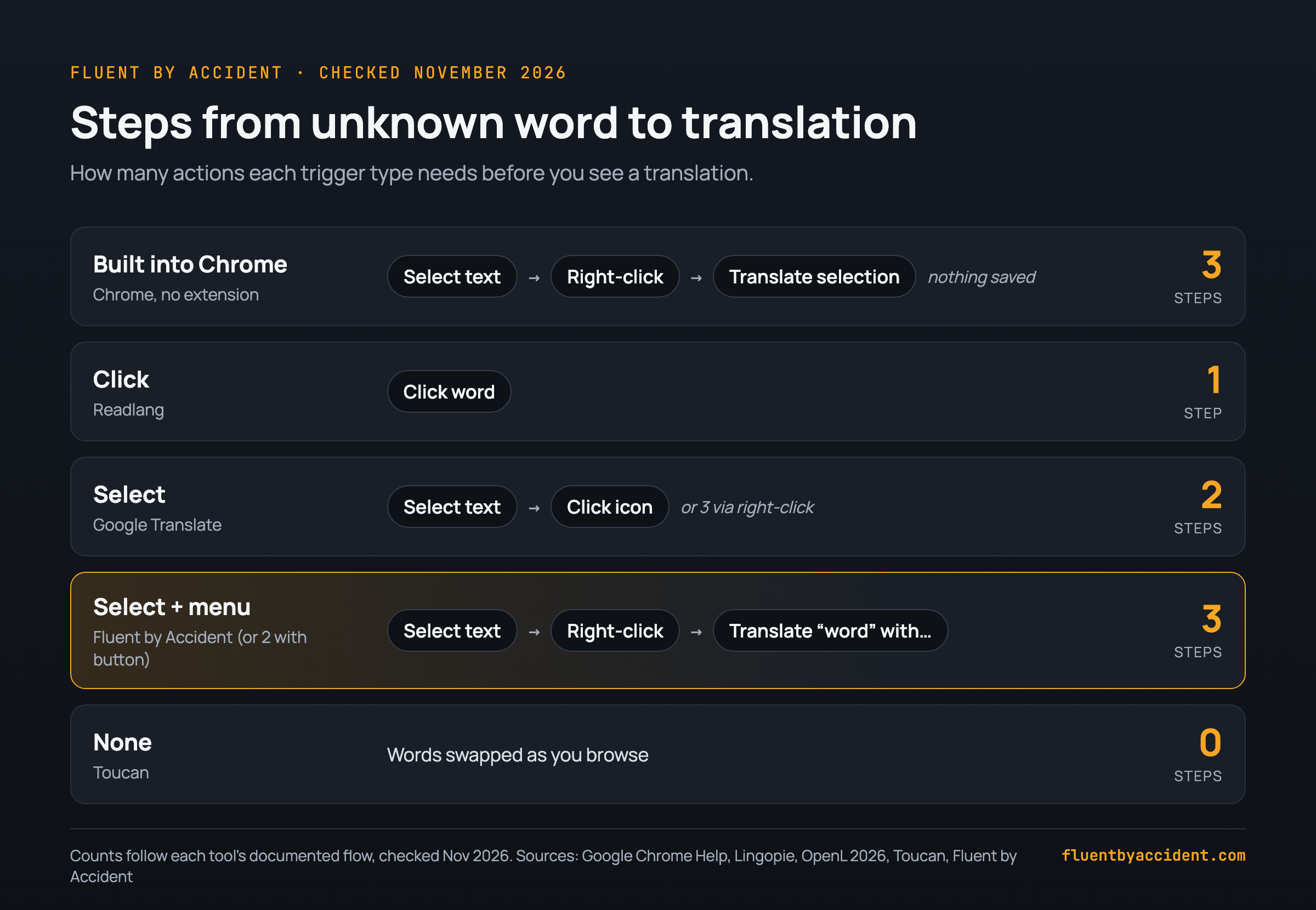
None of the four tools with a documented trigger translates on plain hover: each needs a click, a selection or no action at all (Gikken does not say how Mate's Chrome popup opens). That difference matters more than the brand once you read a long article in Spanish or French.
Last checked: November 2026.
How we tested: We did not run timed hands-on tests. On November 10, 2026 we compared each tool's documented flow from its maker's page and third-party reviews (Web Highlights, Lingopie, OpenL) and, for Fluent by Accident, the extension's source code. We could not load the Chrome Web Store listing for Google Translate (it showed a consent page), and Gikken's Mate pages for Chrome blocked our request, so those details are second-hand or marked as not stated. For every tool we recorded the trigger (hover, click, select, right-click or none), the steps from "unknown word" to "translation visible", the steps to save that word, where saved words end up, and the free-plan limits the maker states. Where a maker does not document something, the table says so instead of guessing.
Best Chrome extension to translate words: quick ranking
The table is the short version. "Steps to translate" counts one action per drag, click or menu choice, starting with the word on screen and ending with its translation visible.
| Rank | Tool | Trigger | Steps to translate | Saves words? | Where saved words go | Free plan |
|---|---|---|---|---|---|---|
| 1 | Readlang Web Reader | Click (after turning the reader on) | 1 click per word | Yes, automatically | Flashcards on readlang.com | Unlimited single words, phrase translations limited per day |
| 2 | Google Translate | Highlight or right-click | 2 (select, click icon) or 3 via right-click | Not described in our sources | Nowhere in the extension | Free |
| 3 | Toucan by Babbel | None (words are swapped for you) | 0 | No manual saving; quizzes and games on words it showed you | Inside Toucan | Free extension |
| 4 | Mate Translate | Not stated by Gikken | Not stated | Yes, phrasebook | Phrasebook, synced across devices | Not stated on the homepage |
| 5 | Fluent by Accident (ours) | Select, then right-click (optional button) | 3, or 2 with the button on | Yes, 1 click | Flashcards with spaced repetition | 20 saved words, no AI, sign-in required |
We ranked by three criteria in this order: how few steps a lookup takes while reading, whether the word is kept for review without extra work, and how honest the free plan is about its limits. Sources for each row sit in the entries below.
Translate on hover vs select vs click: which is better for learning?
There are four ways an extension can show you a translation, plus one built into Chrome, and each one changes how you read.
- Hover: the popup appears when the pointer rests on a word. Yomitan works this way but asks you to hold Shift while hovering, which shows definitions, readings and native audio, according to Web Highlights' comparison. Small single-purpose hover extensions also exist in the Chrome Web Store.
- Click: one click on a word. Readlang uses this, and a drag covers a phrase (Lingopie).
- Select: highlight the text first, then trigger the translation with an icon or the right-click menu. Google Translate and Fluent by Accident work this way.
- Built into Chrome: the zero-install option. Highlight text, right-click and choose Translate selection to [Language] (Google Chrome Help). That is 3 steps, and it does not save anything.
- None: the extension changes the page for you. Toucan swaps some words into your target language as you browse (Toucan).
Plain hover sounds fastest, and for a quick glance it is. For learning, it has a cost: popups appear when you only meant to move the mouse, and a lookup that costs nothing is easy to forget. A click or a selection is deliberate, which makes it a natural moment to save the word too. That is why the Shift modifier in Yomitan exists: it turns hover into a choice.
Tip: If you read long articles, pick a click or select tool and save as you go. If you only browse casually, a passive tool like Toucan or a hover tool with a modifier key is less work.
Google Translate extension: fastest free lookup
The Google Translate extension is free and does one job: you highlight or right-click a section of text and it translates it in place. OpenL, quoting the current Chrome Web Store listing, notes that the listing now says page translation is built into Chrome itself and no longer handled by the extension (OpenL, May 2026).
What you get:
- Two steps per lookup with the icon (select, click), or three via the right-click menu.
- No account needed for the lookup, and no price.
- Whole-page translation comes from Chrome, so you can still flip an entire page when you are lost.
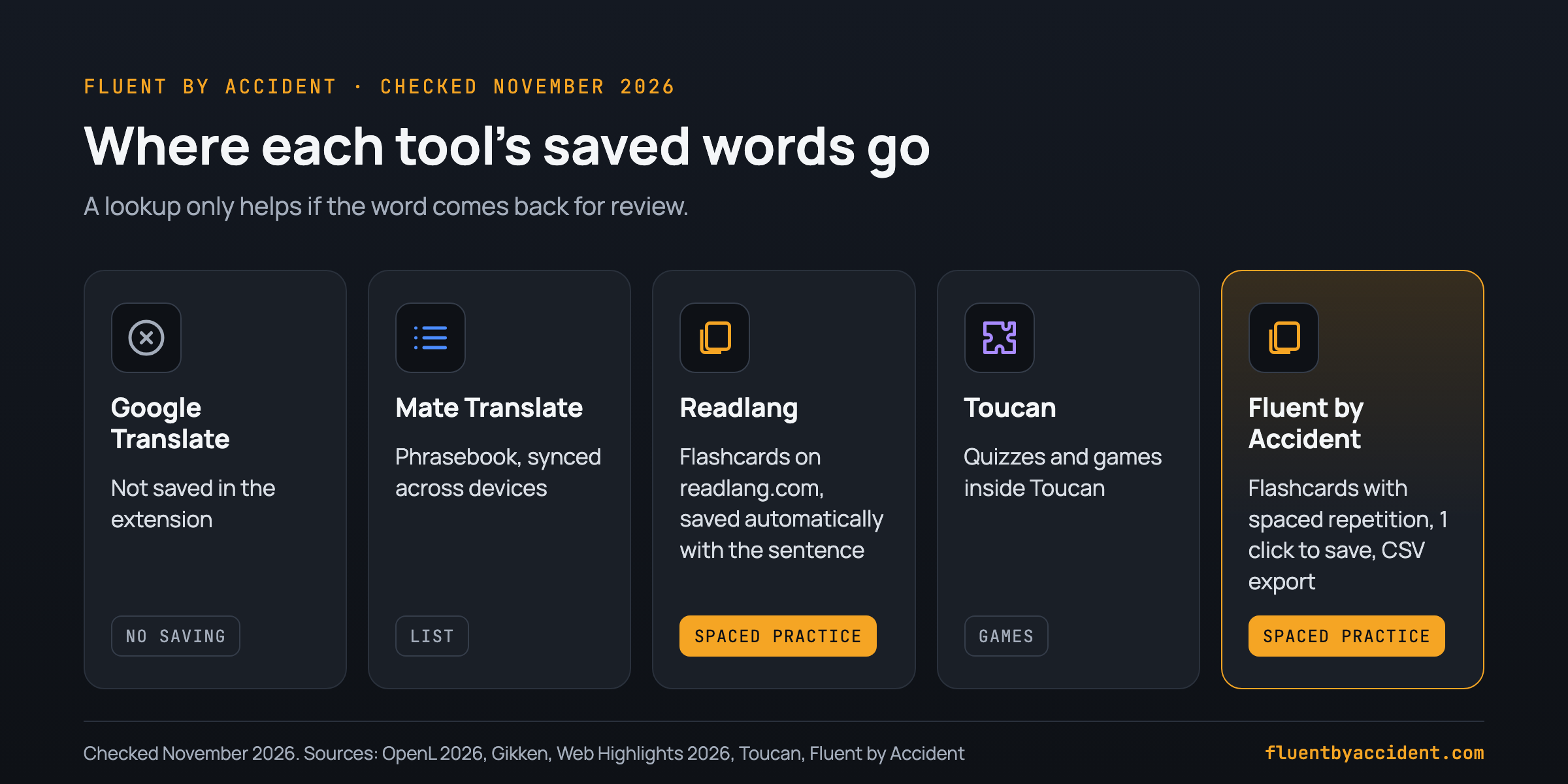
What you do not get is a way to keep words for review inside the extension. If you already collect phrases in the Google Translate app or site, our free Google Translate to Anki converter turns that saved list into flashcards.
Best for: quick checks while reading anything, when you do not plan to review the words later.
Mate Translate: most languages and a phrasebook
Mate, made by Gikken, says it translates between 248 languages, the widest range in this list. Its homepage also describes a phrasebook for "saving and categorizing phrases" and cross-platform sync that keeps translation history and saved phrases the same on all your devices (Gikken). The same page says the extensions translate web pages in one click.
Mate is built as one translator across iOS, macOS and the browser, not as a reading tool. Gikken says it speaks translations aloud and shows phonetics, which helps when a word on the page has an unfamiliar pronunciation (Gikken). It also keeps your translation history, so a word you looked up on your phone is there when you open the browser.
What we could confirm and what we could not:
- Confirmed by Gikken: 248 languages, a phrasebook with categories, sync of history and saved phrases, spoken translations with phonetics, one-click page translation.
- Not stated on the homepage: how a single word is translated in Chrome (click, double-click or selection), how many steps a save takes, and the price or free limits. Gikken's Chrome page blocked our request, so we leave these blank rather than guess.
- Review: the phrasebook is a list you organize, not a spaced repetition deck, so reviewing is up to you.
Those gaps are why Mate sits fourth even with the widest language list.
Best for: people who read in a less common language, or who move between Mac, phone and browser and want one phrase list.
Readlang Web Reader: best for reading and saving words
Readlang ranks first because it removes the second job. You visit a page, press the "R" button, and then translate words with a click or phrases with a drag (Lingopie). The translation appears inside the text, and every word you look up is saved with its original sentence as a flashcard on readlang.com (Web Highlights).
The numbers that matter:
- 1 click per word once the reader is on, 0 extra clicks to save.
- Unlimited single-word lookups on the free plan; phrase translations are limited per day (Web Highlights).
- Practice happens in flashcards on the Readlang site, where a spaced repetition scheduler brings words back (Web Highlights). The site also offers context-aware explanations using AI (Readlang).
If you compare it with other review tools, our flashcard app ranking covers where Readlang's cards fit next to Anki and the rest.
Best for: reading full articles in your target language and building a deck without thinking about it.
Toucan by Babbel: learn words without looking them up
Toucan flips the model. Instead of you looking words up, it swaps some words on the pages you visit into the language you are learning, so a sentence in English carries a few Spanish or French words (Toucan). It comes from Babbel, and it adds quizzes and games to check what you picked up (Toucan).
The homepage lists French, German, Italian, Japanese, Korean, Portuguese, Spanish, Chinese, Arabic, Hebrew and Hindi (Toucan). Lingopie points out the limit: it is purely text-based, so it does little for listening or pronunciation (Lingopie).
Best for: beginners who want some exposure during normal browsing. It is not built for reading a foreign-language article from start to finish.
Fluent by Accident: website translator plus dual subtitles
We make this one, so weigh our take accordingly. Fluent by Accident is mainly a Chrome extension for two subtitle lines on Netflix, YouTube, Prime Video, Disney+ and HBO Max (see our roundup of dual subtitle extensions for Netflix). It also translates and saves selected text on any website.
How it works on a web page:
- Select a word or phrase.
- Right-click and choose "Translate "word" with Fluent by Accident" (the menu shows your selected text). This works without any extra permission.
- In the panel, click Save word or Save sentence, or Later to park it in the Advanced deck without making it due.
An optional setting, off by default, adds a small button next to selected text and lets you Alt+click a sentence to translate all of it. Turning it on asks Chrome for access to all sites. Saved words land in flashcards with spaced repetition in the web app at fluentbyaccident.com, with CSV export.
| Fluent by Accident on websites | Detail |
|---|---|
| Steps to translate | 3 (select, right-click, menu), or 2 with the optional button |
| Steps to save | 1 click |
| Free plan | Up to 20 saved words, basic translation, no AI |
| Pro | $6.99 a month or $49 a year, unlimited saved words, AI subtitle translation |
| Limits | Chrome only, sign-in required, no hover or double-click translation |
Prices are from our pricing page as of November 2026. It ranks fifth here because, for web pages alone, it takes more steps than Readlang or Google Translate. If you also watch Netflix or YouTube with dual subtitles, words from articles and from episodes end up in the same deck. You can get it from the download page.
How to save translated words so you actually review them
Looking a word up is half the job. A saved word only helps if it comes back at the right time, in a sentence you recognize.
A workflow that holds up for any of these tools:
- Save the sentence, not only the word. A word inside its sentence is easier to recall and shows how it is used. This is the core of sentence mining.
- Save fewer words. Keep the ones you have met twice or expect to meet again; skip names and one-off jargon.
- Review on a schedule. Spaced repetition shows a card again just before you would forget it. Readlang (Web Highlights) and Fluent by Accident do this for you; with Mate or Google Translate you need to move words into a flashcard app (see these Anki alternatives).
- Use one deck for everything. If you also make flashcards from what you watch, keep reading words and show words together so reviews stay in one daily session.
Pick by how you read:
| If you mostly... | Start with |
|---|---|
| Read long articles in your target language | Readlang Web Reader |
| Browse casually and check the odd word | Google Translate |
| Want exposure without effort | Toucan by Babbel |
| Read in a rare language or across devices | Mate Translate |
| Also watch Netflix or YouTube to learn | Fluent by Accident |
FAQ
How do I translate a word by hovering in Chrome?
Chrome can translate a selection without any extension: highlight the text, right-click and choose Translate selection to [Language] (Google Chrome Help). It cannot translate on hover, so for hover you need an extension. Yomitan is a well-known option: hold Shift, hover over a word on any website, and a popup shows definitions, readings and native audio, according to Web Highlights' comparison. There are also smaller hover extensions in the Chrome Web Store. None of the four tools in this ranking with a documented trigger translates on plain hover: Readlang needs a click, Google Translate and Fluent by Accident need a selection, and Toucan swaps words for you. A modifier key like Shift helps avoid popups you did not ask for.
Does the Google Translate extension still translate whole pages?
No, not according to its current listing. OpenL reports that the Chrome Web Store listing for the Google Translate extension says page translation is now supported natively in Chrome and no longer in the extension (OpenL, May 2026). The extension is now mainly for highlighting or right-clicking a section of text and translating it in place. To translate a full page, use Chrome's built-in translate option, which appears in the address bar or the right-click menu on a page in another language. The extension and the built-in feature can be used side by side.
Can Chrome translate one word without translating the whole page?
Yes, and without any extension. Highlight the word, right-click and choose Translate selection to [Language] (Google Chrome Help). Extensions add a faster trigger or a way to save the word. With Google Translate you highlight the word and translate it in place. With Readlang you turn on the Web Reader and click the word. With Fluent by Accident you select the word, right-click and choose "Translate "word" with Fluent by Accident", and the page itself stays in the original language. Keeping the page untranslated is useful for learning, because you keep reading in your target language and only check the words you need.
Which translation extension saves words as flashcards?
Readlang and Fluent by Accident both turn saved words into flashcards. Readlang saves every word you look up together with its original sentence and turns it into a flashcard on readlang.com, with no extra click (Web Highlights). Fluent by Accident needs one click on Save word or Save sentence and sends the card to its web app with spaced repetition; the free plan keeps up to 20 saved words (pricing). Mate saves phrases in a phrasebook you organize yourself (Gikken), and Google Translate's extension does not describe a save feature.
Are word translation extensions safe to give "read all sites" permission?
The permission prompt means the extension can read and change the pages you visit, which is what it needs to show a popup next to a word. That is a real level of access, so install extensions from known makers, check the listing's publisher and stick to the ones you use. Some tools ask only when needed. Fluent by Accident's right-click translation works without extra permission because it is added to the page on demand; Chrome asks for access to all sites only if you turn on the optional selection button. If you are unsure, start with the option that asks for the least.
Sources
- OpenL Team, "5 Best Chrome Translator Extensions in 2026", May 17, 2026: https://blog.openl.io/best-chrome-translator-extensions-2026
- Lingopie, "7 Best Chrome Extensions for Language Learning", checked November 10, 2026: https://lingopie.com/blog/best-chrome-extensions-for-language-learning/
- Web Highlights, "Top 11 Chrome Extensions For Language Learning: The Great Comparison", 2026: https://www.web-highlights.com/blog/top-chrome-language-learning-extensions-the-great-comparison/
- Google, Google Translate, Chrome Web Store listing, cited via OpenL, May 17, 2026: https://chromewebstore.google.com/detail/google-translate/aapbdbdomjkkjkaonfhkkikfgjllcleb
- Google, Chrome Help: Translate pages and change Chrome languages, checked November 10, 2026: https://support.google.com/chrome/answer/173424
- Gikken, Mate Translate, checked November 10, 2026: https://gikken.co/mate-translate/
- Readlang, homepage, checked November 10, 2026: https://readlang.com/
- Toucan by Babbel, homepage, checked November 10, 2026: https://jointoucan.com/
- Fluent by Accident, pricing, checked November 10, 2026: https://fluentbyaccident.com/pricing