How to learn a language with Amazon Prime Video
The Prime Video learning method: audio and subtitle settings on each device, how to find titles with your target language tracks, what ad breaks do to a study session, and a quick Chrome setup.

To learn a language with Prime Video, set the audio to your target language, turn on subtitles in the same language, and pick titles that actually ship both tracks. Watch in a desktop browser if you want a second subtitle line and line-by-line replay, because the TV and phone apps show one subtitle line at a time.
How we tested:
- Date and browser: November 3, 2026, our extension 0.32.4, Chrome 156 on macOS 26.5, on a Prime-style test player with English and Polish subtitle tracks.
- Measured: in 3 runs, both lines showed 0.75 to 0.88 seconds after page load, a 30-second clock offset was corrected, and the R key replayed the line at 0.75x.
- Not tested: a live Prime Video account, so no real title track lists. We read Amazon's pages, the OTTVerse ad report (based on Adweek) and the search-result snippet of one Prime learning extension's Chrome Web Store listing (the page itself did not load for us). Ad minutes per episode are our own arithmetic.
How to learn a language with Prime Video (the short version)
Prime Video works for learning for the same reason any show does: you hear a lot of real speech in context, and you understand enough of it to keep going. If you want the theory behind that, read why watching TV shows teaches you a language. If you already use Netflix, the core habits are the same as in the Netflix language learning method; this guide only covers what Prime does differently.
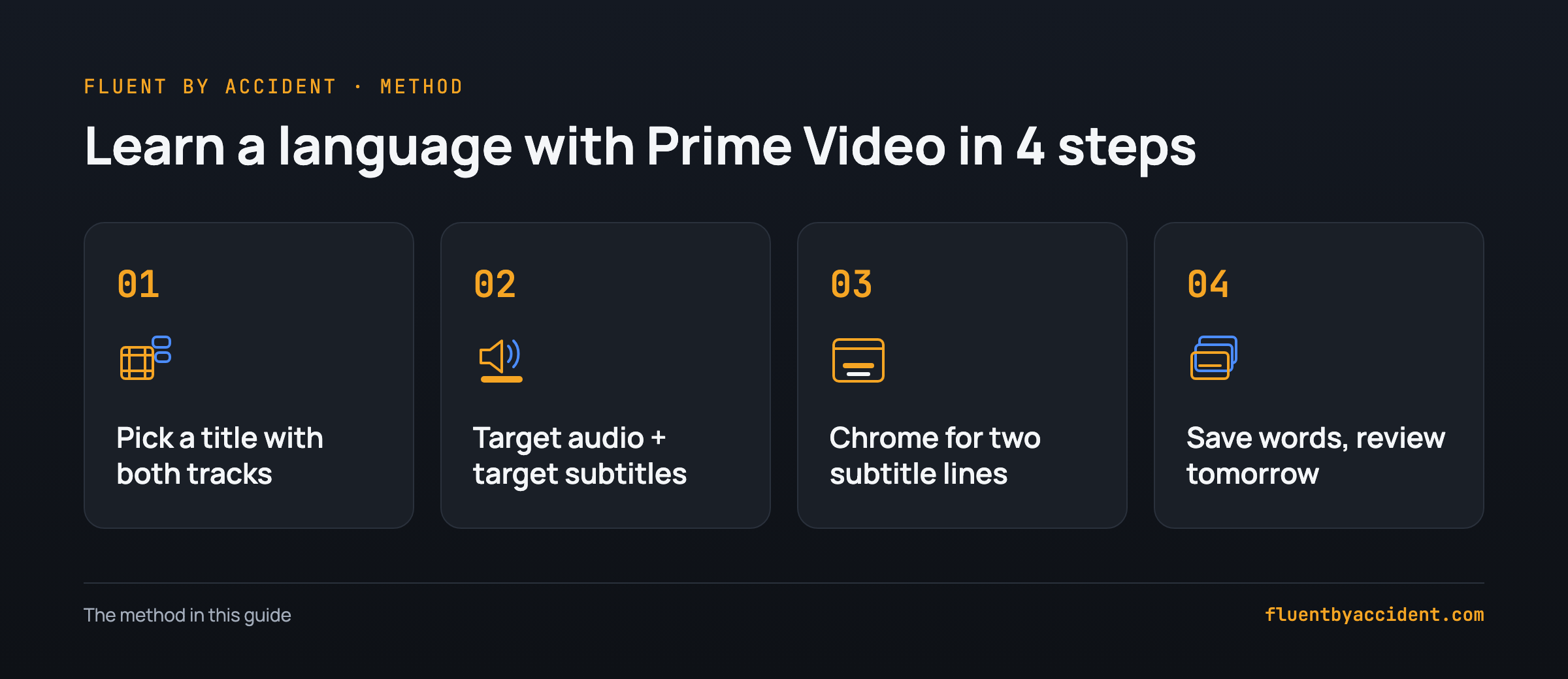
Here are the four steps.
- Pick a title that has your target language twice: audio and subtitles. Availability changes by country.
- Set target-language audio and target-language subtitles, so you match the sound to the written word.
- Use a desktop browser when you want two lines. In Chrome, an extension can add a native-language line and replay single lines.
- Save words as you go. Save the 5 to 10 words that matter most per episode and review them as flashcards the next day.
How do I change the audio and subtitle language on Prime Video?
You change both in the player, while a title is playing. On most devices, Prime shows audio and subtitles in one menu, with one list for each (Android Authority describes this layout for the phone app). The audio list only shows the languages that the title has, so a missing language is a property of the title, not a setting you forgot. One Roku user describes exactly that in a Roku Community thread: a language appears only when the title has that audio track.
The menus look slightly different per device. The table shows what to look for and what each device can do for a learner.
| Device | Where the language menu is | Change audio | Change subtitles | Two subtitle lines | Click a word to translate |
|---|---|---|---|---|---|
| Desktop browser (Chrome) | Subtitles and audio icon in the player controls | Yes, if the title has the track | Yes | Only with an extension | Only with an extension |
| Fire TV, smart TV, Roku | Subtitles and audio option in the on-screen player menu | Yes, if the title has the track | Yes | No | No |
| Phone and tablet app | Pause, tap the screen, tap the speech bubble icon at the top right (per Android Authority) | Yes, if the title has the track | Yes | No | No |
Icon names change with app updates, so look for the speech bubble or a "Subtitles and Audio" label. Which language goes on which line is a level question: our guide to target-language or native subtitles helps you pick. The TV limit is the same one Netflix has, explained in how to get two subtitle lines on a TV or phone.
Which Prime Video titles have your target language?
It depends on the title and on the country your account is in. A studio licenses a film to Prime with certain audio and subtitle tracks per region, so the same film can have a Spanish dub in Mexico and none in Germany. Track lists vary a lot between titles, so check each one before you commit to a series. That is why this guide gives no title list.
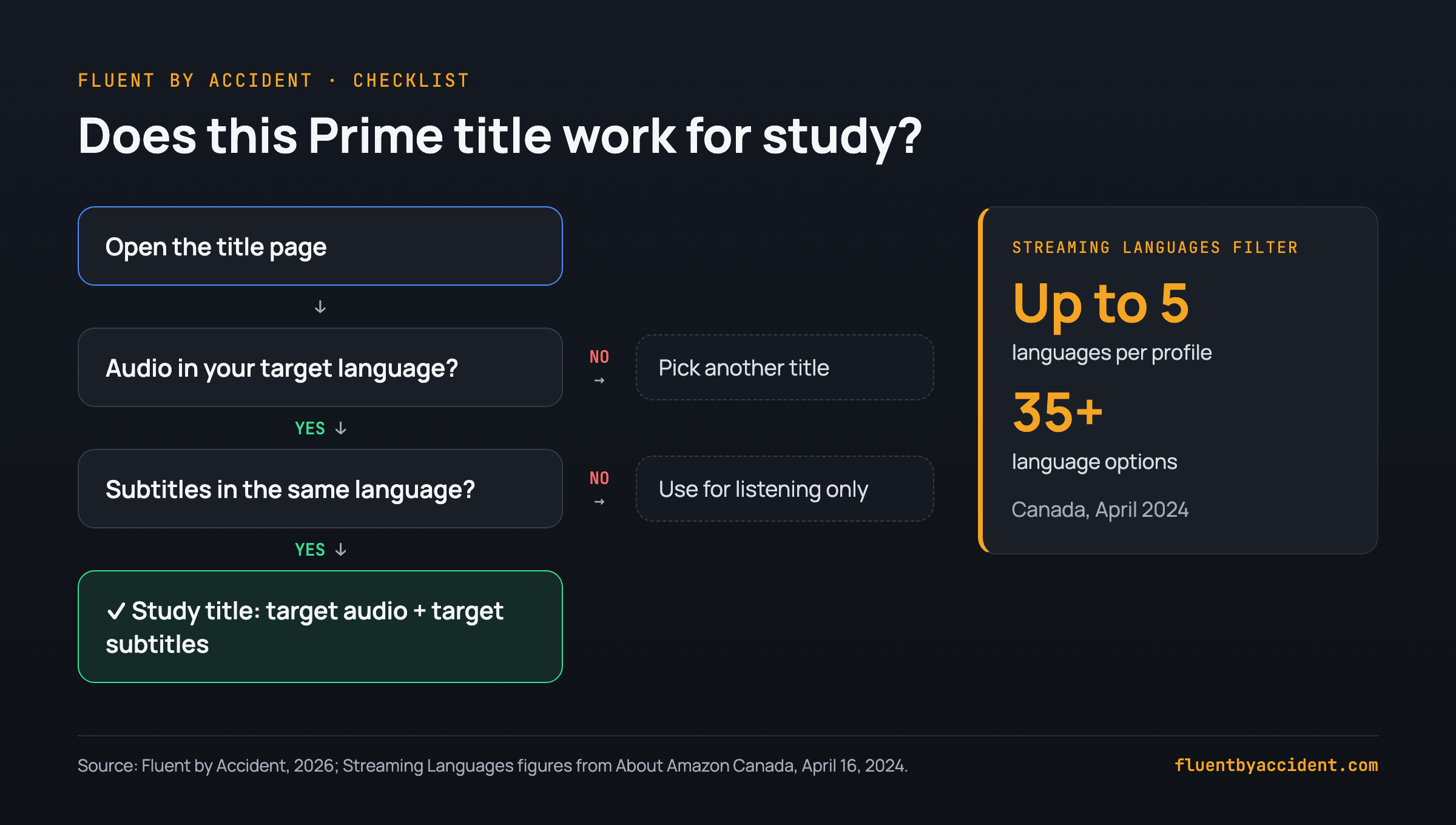
The fastest filter is Prime's own. In April 2024 Amazon launched a profile setting in Canada called Streaming Languages. According to Amazon's announcement, you can choose "up to five languages from over 35 language options", and Prime Video will then "filter titles on their homepage to mostly show titles with audio (original or dubbed) or subtitles in their preferred language(s)". The same page says you set it under Edit Profile, then Streaming Languages, and that the choice syncs to every device on the account.
The announcement is for Canada. Open your profile settings and check whether you see it. If you do, add your target language and your native language, and your homepage turns into a rough catalogue of titles you can study with.
Tip: Prefer titles whose original audio is your target language over dubs. A dub and its subtitles are often written separately, so the words you hear and the words you read can differ, which makes same-language subtitles less useful. A local reality show or a series filmed in the language gives you matching tracks more often.
To check a single title, open its detail page or start episode one and open the subtitles and audio menu. You need an audio track and a subtitle track in your target language; if only one exists, keep the title for listening practice and pick another for study.
If you can get a subtitle file for a show you plan to study, our free subtitle vocabulary list tool turns it into a word frequency list, so you can preview the most common words before episode one.
Do ads on Prime Video interrupt study sessions?
Yes, if your plan includes ads. When Amazon introduced ads in January 2024, it aimed for "two to three-and-a-half minutes of ads per hour", and that has since grown to "four to six minutes per hour", according to OTTVerse's June 2025 report, which is based on reporting by Adweek. The same report puts traditional cable TV at 13 to 16 minutes per hour, so Prime is still lighter than cable.
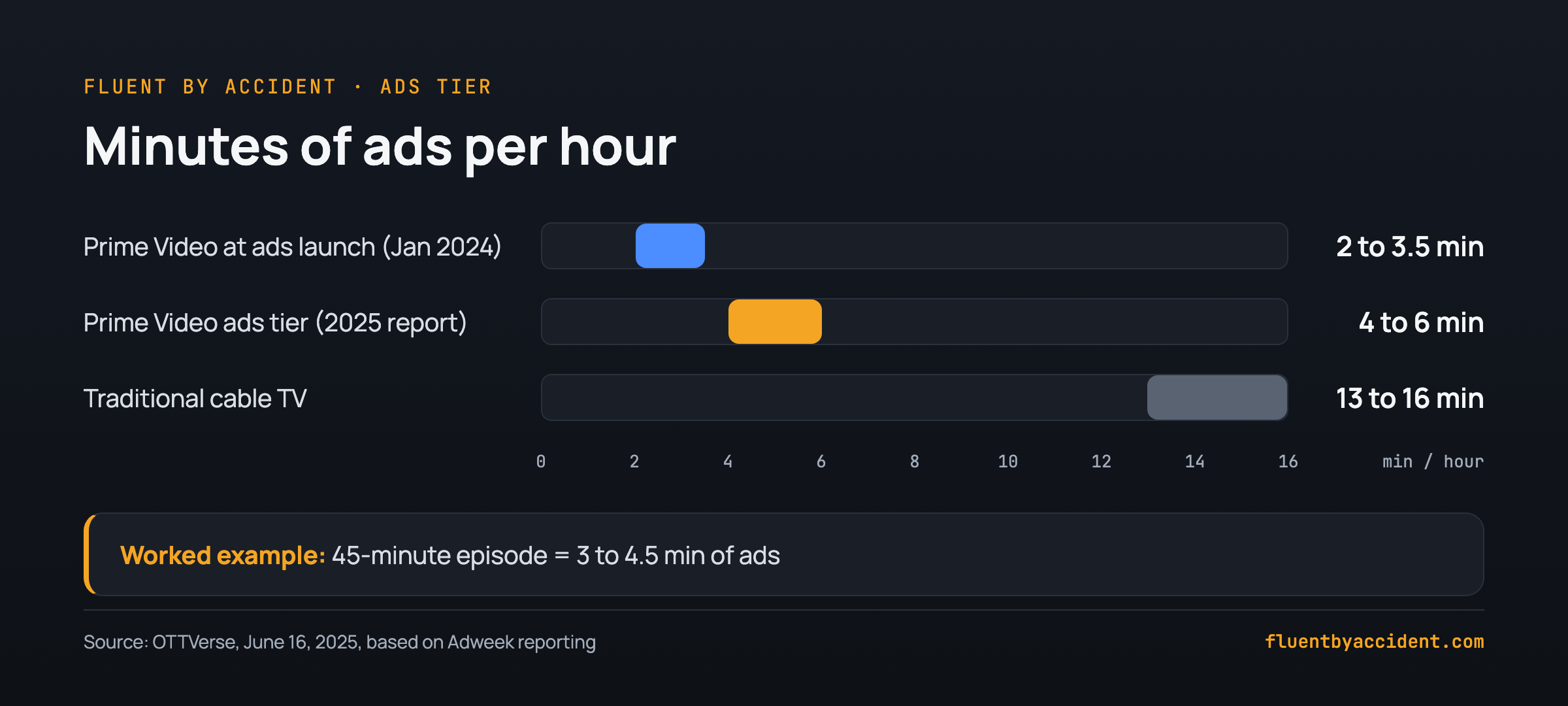
What does that mean for one episode? Here is our own calculation, labelled as an example.
| Worked example | Arithmetic | Low end | High end |
|---|---|---|---|
| 45-minute episode | 45 / 60 x 4 and 45 / 60 x 6 | 3.0 min | 4.5 min |
| 25-minute study block | 25 / 60 x 4 and 25 / 60 x 6 | about 1.7 min | 2.5 min |
| Same 45-minute episode at the January 2024 level | 45 / 60 x 2 and 45 / 60 x 3.5 | 1.5 min (at 2) | about 2.6 min (at 3.5) |
The cost for a learner is the break itself: an ad in your native language resets your ear right when you were tuning in. If you use a subtitle extension, watch the first ad break of a session and check that the overlay comes back in sync afterwards.
You can turn the breaks into part of the session:
- Pause before you lose the thread. When you sense a break coming at a scene change, finish the line you are on and pause on your own terms.
- Use the break as review time. Look at the words you saved in the last 10 minutes and say each one out loud once.
- Restart one line back. After the break, rewind to the last line before it, so you re-enter the scene in the target language.
If ads bother you enough to pay for removing them, Amazon lists the ad-free add-on price per country on its Prime Video help pages.
Can you slow down or replay lines on Prime Video?
Not line by line, natively: the built-in player has rewind and forward jumps, but nothing that jumps to the start of the previous subtitle line. Check the gear or settings icon in the web player for a speed option before installing anything for speed alone.
X-Ray, Prime's info panel, is not a study tool either: according to Amazon, it "identifies actors" and "places interesting trivia at specific time points" while you watch, plus the music. It explains the title, not the words on screen.
Extensions fill this gap in Chrome. Line-by-line replay is the most useful feature for listening practice, because you replay the exact sentence. Some Prime learning extensions advertise slower playback, for example Language Learning with Amazon Prime (AFL).
| What you want | Prime player on its own | With a Chrome learning extension |
|---|---|---|
| Hear the last sentence again | Rewind jump, then find the spot | Replay the exact line |
| Move line by line | Not available | Previous and next line shortcuts (depends on the extension) |
| Slower speech | Check your player's settings | Slow replay or custom speed (depends on the extension) |
| Stop after every line | Not available | Auto-pause mode in some extensions |
| Works on TV and phone apps | Yes | No, desktop browser only |
How to get dual subtitles on Prime Video in Chrome
Two subtitle lines need a desktop browser and an extension; Prime's own player shows one line. The setup takes a few steps:
- Install a dual subtitle extension for Prime Video from the Chrome Web Store, and sign in if it asks you to.
- Open a title on primevideo.com (or amazon.com Prime Video) in Chrome, not in the desktop or TV app.
- Set Prime's own subtitles to your target language, so the extension has a track to read.
- Choose the second line in the extension: your native language, either from the title's own subtitle tracks or as a translation.
- Play a minute and check sync. Both lines should change at the same moment as the speech.
One limit to know: extensions that read Prime's own tracks can only show languages the title already has, or a translation of the line. They cannot add a Japanese track to a film that has none.
Which extension to pick is a separate question, and we answer it in which dual subtitle extensions work on Prime Video, so this guide does not rank them again. If you use another browser, see dual subtitles in Firefox, Edge, Safari and Brave.
Quick check before you blame the extension: if the second line does not show, first confirm Prime's subtitles are on and set to a real track (not "Off"), then reload the page once.
A Prime Video study session you can copy
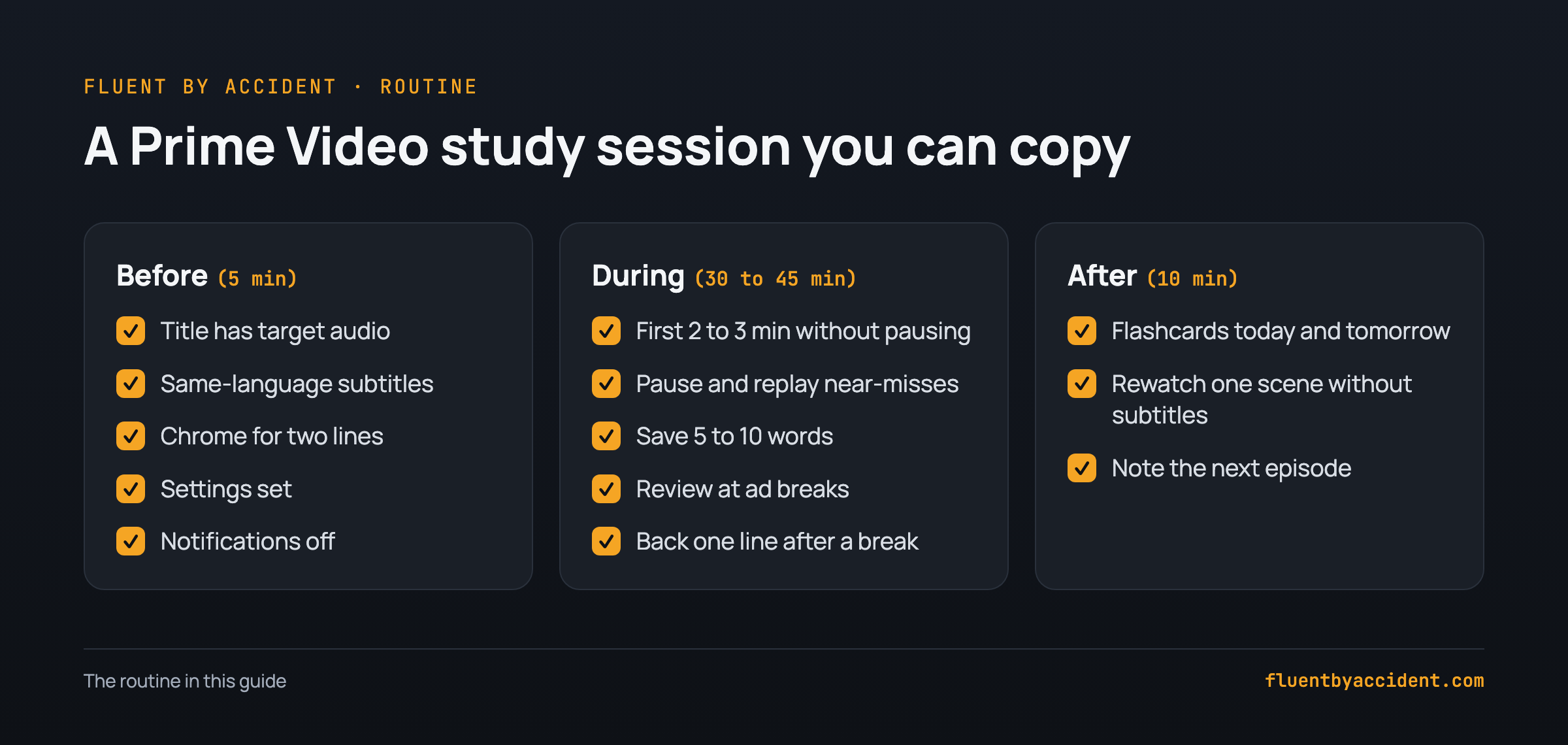
Use this checklist for one 45 to 60 minute session. It assumes target-language audio; adjust the subtitle step to your level with our target or native subtitles guide.
Before you press play (5 minutes)
- The title has audio in your target language.
- The title has subtitles in the same language.
- You are in Chrome on a computer if you want two lines and line replay.
- Audio set to the target language, subtitles set to the target language.
- Second line set to your native language (only if you need it).
- Phone notifications off, a note or deck open for new words.
While you watch (30 to 45 minutes)
- Watch the first 2 to 3 minutes without pausing, to get used to the voices.
- Pause on a line you almost understand, replay it once, read it, replay it again.
- Save 5 to 10 words or short phrases per episode, the ones that come back or that you want to use.
- At an ad break or scene change: review the words you saved so far.
- After a break, go back one line before you continue.
After the episode (10 minutes)
- Review the saved words as flashcards today and again tomorrow.
- Rewatch one short scene with no subtitles and note how much you followed.
- Write down the next episode so the next session starts in 1 minute.
For turning saved words into a deck you will actually review, see how to make flashcards from Netflix and YouTube; the same steps work for Prime.
If you want two lines, click-to-translate and a flashcard deck in one place on Prime Video in Chrome, Fluent by Accident is the extension we make for that, with a free plan.
FAQ
Can you change the audio language on Amazon Prime Video?
Yes, on most devices, as long as the title has a track in that language. Start the title, open the subtitles and audio menu in the player, and pick the audio language from the audio list. On the phone app, pause, tap the screen and tap the speech bubble icon. If your language is not in the list, the title simply does not have that audio track in your region. Viewers cannot add a dub to a title, so switch to a title that has your language or use it with subtitles only. In Canada, Amazon's Streaming Languages profile setting filters your homepage toward titles with your chosen languages.
Why is my language not available on Prime Video?
Audio and subtitle tracks are set per title and per country. A film licensed to Prime may come with Spanish and French tracks in one region and only English in another, and track lists vary a lot between titles, so check each one. The menu only lists what the title has, so no setting will add a missing language. To find titles that do have it, try the Streaming Languages setting under Edit Profile, which Amazon launched in Canada in 2024 with over 35 language options, and check whether your region offers it. Otherwise, check the title page or the player menu before starting a series.
Does Prime Video have dual subtitles?
Not natively. Prime Video's own player shows one subtitle line at a time on browsers, TVs and phones. To see two lines at once, for example Spanish on top and English below, you need a desktop browser such as Chrome and a dual subtitle extension that supports Prime Video. These extensions read the subtitle tracks the title already has, or translate the line, so they cannot add a language the title lacks. On Fire TV, smart TVs and the mobile apps, browser extensions do not run, so dual subtitles are a computer-only option. Our separate guide compares which extensions work on Prime.
Can you slow down Prime Video for language learning?
Look in your player's settings first for a speed option. What the built-in player does not offer is line-by-line replay, the feature learners need most, since it replays the exact sentence you missed. Chrome learning extensions add that, and some Prime learning extensions advertise slower playback too.
Is Prime Video good for learning Spanish?
It can be: Spanish (Spain) and Spanish (Latin America) are both in the Streaming Languages list that Amazon announced for Canada. The catch is that tracks vary by title and country, so check each title for Spanish audio and Spanish subtitles before starting. Prefer shows originally made in Spanish over dubs, since their subtitles match the speech more often. Before you start, learning the most common Spanish words helps you understand more of each episode, which makes watching feel like learning sooner.
Do Prime Video ads affect subtitles or extensions?
Ads affect your study rhythm more than your subtitles. On the ads tier, reporting from June 2025 puts Prime Video at four to six minutes of ads per hour, which works out to about 3 to 4.5 minutes in a 45-minute episode. Each break interrupts your listening in the target language, so plan to pause, review saved words during the break and go back one line when the show resumes. If your second subtitle line lags after a break, reload the page.
Sources
- Amazon (About Amazon Canada), "Prime Video launches Preferred Languages in Canada", April 16, 2024: https://www.aboutamazon.ca/news/entertainment/prime-video-launches-preferred-languages-in-canada (checked November 3, 2026)
- OTTVerse, "Amazon increases Prime Video ad load to 4-6 minutes per hour", June 16, 2025: https://ottverse.com/amazon-increases-prime-video-ad-load-to-4-6-minutes-per-hour/ (checked November 3, 2026)
- Adweek, original reporting on Prime Video ad load cited by OTTVerse: https://www.adweek.com/media/exclusive-amazon-doubles-prime-video-ads-to-6-minutes-per-hour/
- Amazon (About Amazon), "Behind the scenes with X-Ray": https://www.aboutamazon.com/news/entertainment/behind-the-scenes-with-x-ray (checked November 3, 2026)
- Chrome Web Store, "Language Learning with Amazon Prime (AFL)" listing: https://chromewebstore.google.com/detail/language-learning-with-am/ipnohkolmjlocedopkiiebabnfjnkjeb (page did not load, summary from search result, November 3, 2026)
- Android Authority, "How to turn on Amazon Prime Video subtitles": https://www.androidauthority.com/amazon-prime-subtitles-1012675/ (not fetched, summary from search result)
- Roku Community, "Prime video language settings" (user report): https://community.roku.com/t5/Discussions/Prime-video-language-settings/m-p/973902
- Fluent by Accident, own test of extension 0.32.4 on the repo's Prime-style test player, Chrome 156 on macOS, November 3, 2026