How to learn a language with YouTube: a step-by-step setup
A step-by-step YouTube setup for language learners: which channels fit your level, how to tell manual from auto-generated captions, the speed and shortcut settings, and a weekly routine.
To learn a language with YouTube, pick channels that match your level, turn on captions in the language you are learning (creator-made captions first, auto-generated only as a fallback), slow fast speakers to 0.75x, and save the words you look up so you review them later. Do it on a fixed weekly routine, mixing learner channels with native content, instead of watching at random.
That is the whole method. The rest of this guide is the setup: which channels to pick, which settings to change, which keys to press and what to do on each day of the week. If you are still choosing a tool that shows two subtitle lines at once, read our YouTube dual subtitles test first; this page does not rank extensions.
Last tested: November 2, 2026
How we tested: on November 2, 2026 we ran a scripted session in Chromium 155.0.8059.12 (signed out of YouTube, English interface). On a Spanish TEDx talk, the Subtitles/CC menu listed: Off, Arabic, Spanish, Spanish (auto-generated), Auto-translate. Switching to the creator track took 3 clicks. Setting 0.75x took 7: gear, Playback speed, then minus 5 times, since the panel had no 0.75 preset and moved in 0.05 steps. All 8 Easy Spanish and Easy Spanish Podcast videos we opened offered only a Spanish (auto-generated) track. On our own fake player page, not live YouTube, Fluent by Accident 0.32.4 showed both lines 0.76 seconds after load, and one click on a word opened its popup (screenshot below). We did not time an install or test the extension on live YouTube; its creator-track-first rule comes from its code. Shortcuts and automatic-caption limits come from YouTube's help pages; the caption-menu labels come from our own check.
Which YouTube channels should you watch at your level?
Pick a channel type, not a famous name. The right video is one where you follow most of what happens and only a few words per minute are new. That idea comes from comprehensible input, and it matters more on YouTube than on Netflix, because YouTube puts a beginner lesson and a fast native podcast one click apart.
Here is the map we use. The speeds are our suggestion, not a research finding.
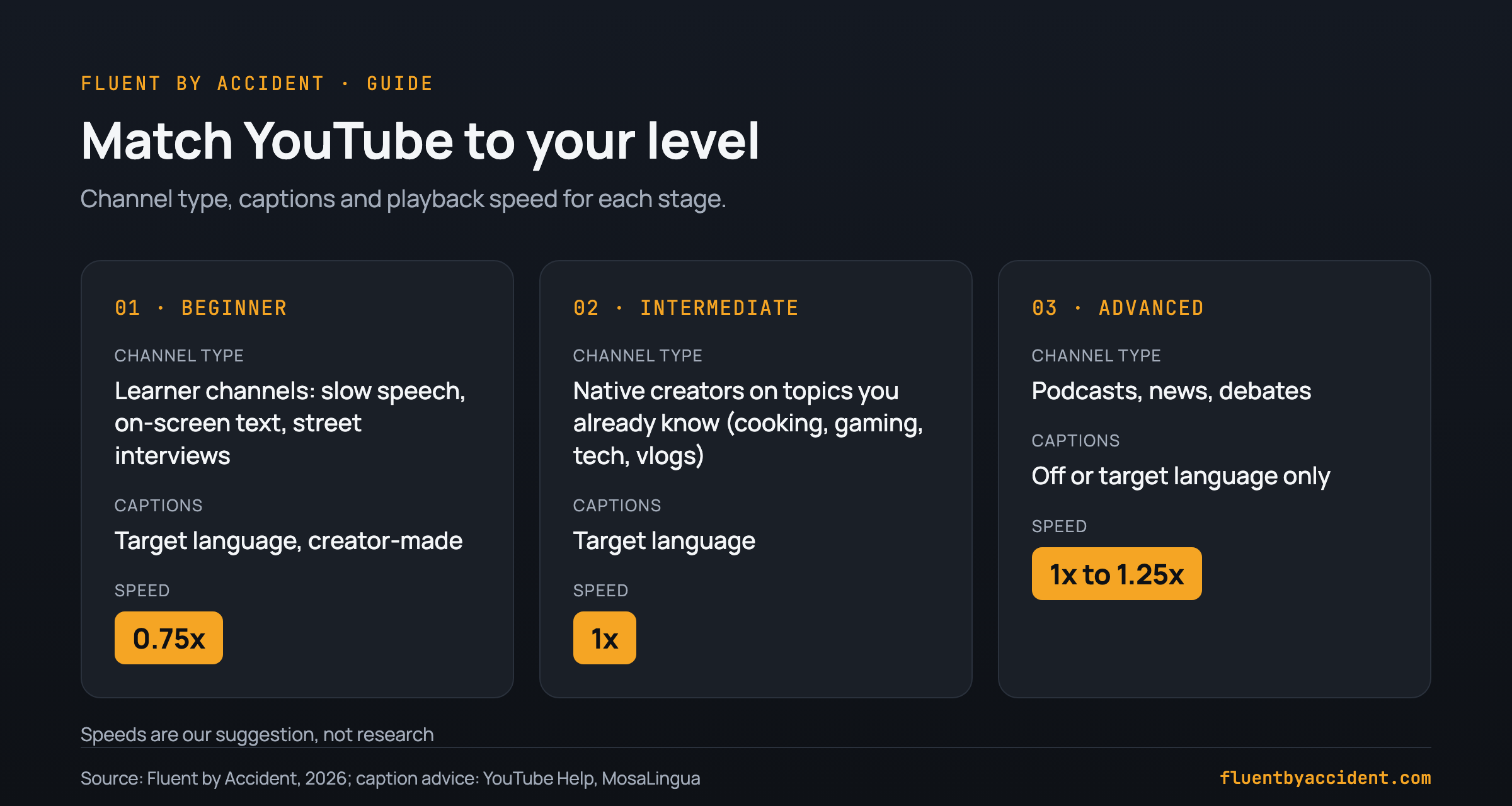
Beginner. Learner channels built for you: slow, clear speech, text on screen and a teacher or host who repeats key phrases. The street-interview format is a good fit because each clip is short and has subtitles in both languages.
Intermediate. Native creators talking about something you already understand in your own language: recipes, game playthroughs, phone reviews, travel vlogs. You know the context, so your brain spends its effort on the language instead of the topic.
Advanced. Podcasts, news, panel discussions and long interviews. Turn captions off on the first watch, then on for the parts you missed.
Speed by level: beginners start at 0.75x, intermediate at 1x, advanced at 1x with 1.25x only on a rewatch.
Example: channel lists such as Lingopie's guide name learner channels like Easy French and Easy Spanish (street interviews) and Italiano Automatico. Treat names like these as examples of the beginner type, not as a ranking. Search YouTube for "easy [language]" or "[language] comprehensible input" plus your level to find more.
How do you tell good captions from auto-generated ones?
Open the gear icon, then Subtitles/CC. In our check, the machine track was labelled "Spanish (auto-generated)" and the creator's track just "Spanish". Fluent in 3 Months gives the same check: see "whether the captions were supplied by the creator or generated automatically, because automatic captions can mishear words, names and punctuation" (Benny Lewis, Fluent in 3 Months).
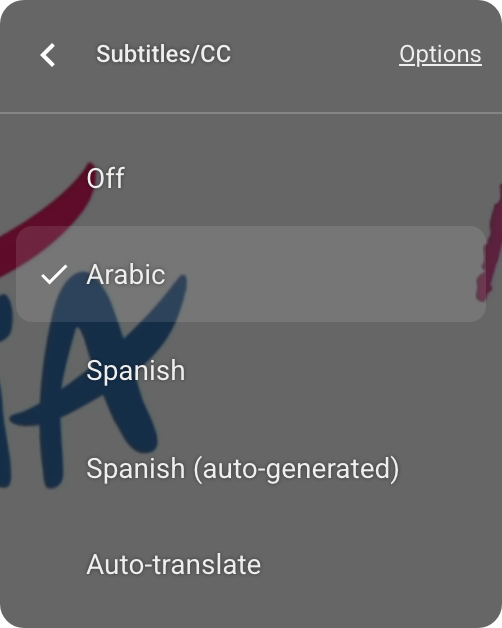
Learner channels often lack a creator track: all 8 Easy Spanish videos we checked had only the auto-generated one.
YouTube is open about the limits. Its help page says automatic captions "might misrepresent the spoken content due to mispronunciations, accents, dialects, or background noise" and that the quality "may vary" (YouTube Help: automatic captioning). The same page lists cases where auto captions fail or do not appear at all:
- the language of the video is not supported,
- the sound is poor or YouTube does not recognize the speech,
- several speakers overlap, or two languages are spoken at once,
- live streams in any language other than English, because automatic captions for live streams are available in English only.
The menu also offers Auto-translate: machine translation of an existing track. It is fine for the line in your native language, but never learn words from it.
| Caption type | Who made it | Trust it for | Avoid when |
|---|---|---|---|
| Language name only (e.g. "Spanish") | Uploaded as a manual track, not speech recognition | Learning words and spelling, saving sentences | Rarely; check a minute against the audio if spelling looks off |
| "(auto-generated)" | YouTube speech recognition | Clear, single-speaker videos when no creator track exists | Accents, background music, overlapping speakers, names |
| Auto-translate | Machine translation of another track | Your native-language line, for rough meaning | Always as the line you learn from |
| No captions | Nobody | Advanced listening practice | Beginner and intermediate study sessions |
Our rule of thumb: creator captions beat auto captions on clear audio, and auto captions on clear audio beat nothing. MosaLingua says the same: auto captions "should be avoided if human-generated subtitles are available" (MosaLingua). For which language goes on which line, see target-language subtitles or native.
What playback speed is best for learning a language on YouTube?
On desktop, open the gear icon and choose Playback speed. In our test it had no 0.75 preset, so we pressed minus 5 times. On the mobile app, YouTube's steps are "Tap the video once, then tap Settings" and then "Tap Playback speed" (YouTube Help: playback speed). On a TV, check first: YouTube says "Playback speed may not be available on all smart TVs and streaming devices."
Start fast speakers at 0.75x. MosaLingua uses the same number: "Usually, 0.75x is a good speed to make fast speakers understandable" (MosaLingua). Go back to 1x as soon as you follow most of a scene. In our view, staying far below 0.75x for long stretches is a bad habit, because slowed speech stretches the rhythm you are trying to learn. That is an opinion, not a study result.
The three-speed rule (our suggestion) 0.75x Fast speakers 1x Default 1.25x Rewatch of known videoTip: three speeds cover almost every case. Use 0.75x for a fast native speaker on first watch, 1x as your default, and 1.25x only when you rewatch a video you already understand. On mobile, double-tap the left side to rewind and the right side to fast-forward (YouTube Help).
Which YouTube keyboard shortcuts help language learners?
Learning from video means pausing and replaying all the time, so the keyboard saves you a lot of mouse trips. Every key below comes from YouTube's official shortcut list. Print it or keep it in a second window for your first week.
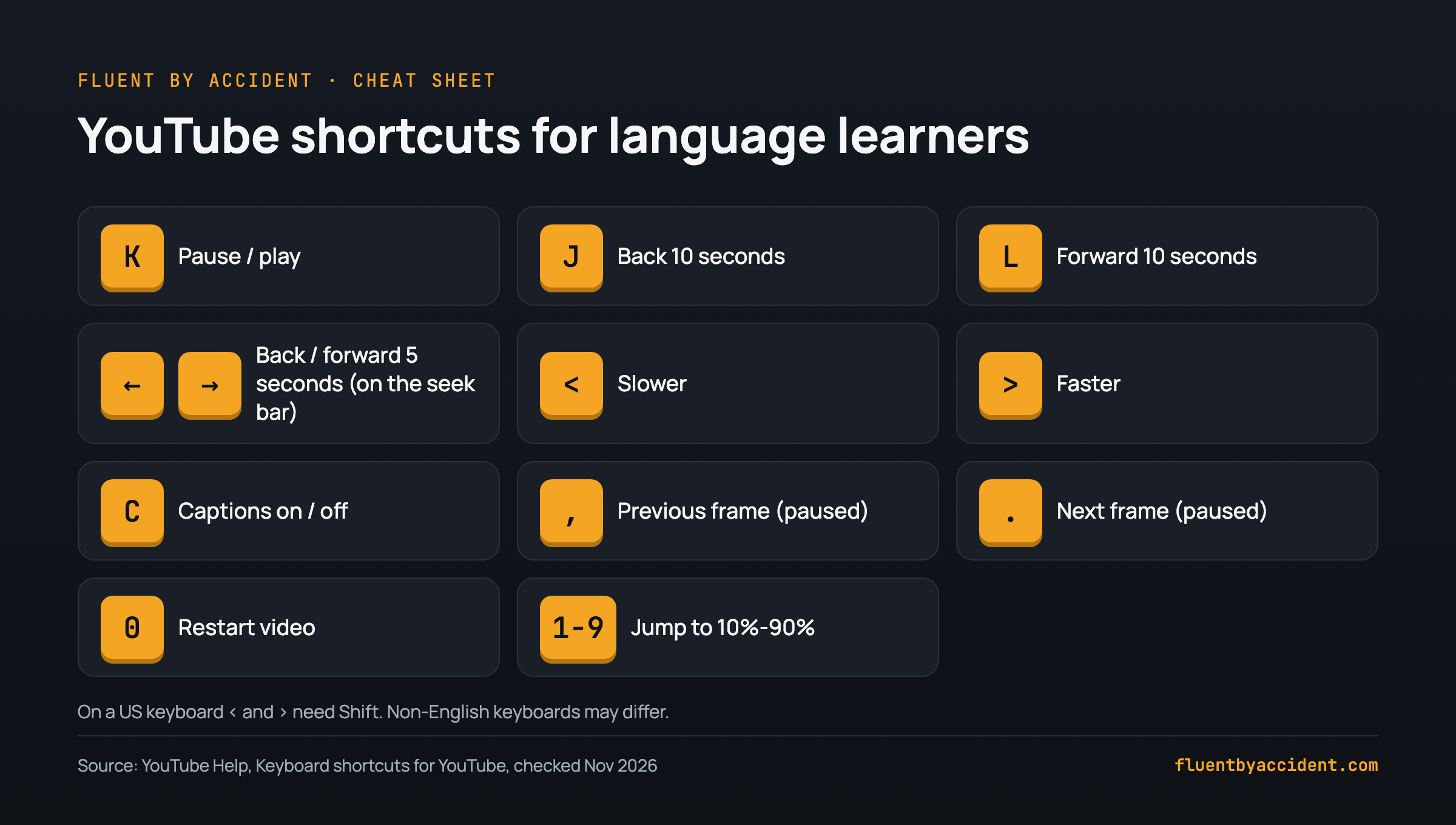
| Key | What it does (YouTube's wording) | Why it helps you learn |
|---|---|---|
| k | Pause/Play in player | Stop on a line you want to read again |
| j | Seek backward 10 seconds | Replay a sentence you missed |
| l | Seek forward 10 seconds | Skip intros and sponsor reads |
| Left / Right arrow | Seek backward/forward 5 seconds (on the seek bar) | Shorter replay for one phrase |
| < | Slow down the video playback rate | Drop to 0.75x for a fast speaker |
| > | Speed up the video playback rate | Back to 1x when it gets easy |
| c | Activate closed captions and subtitles if available; press c again to hide | Listen first, then check with captions |
| , | While paused, go back to the previous frame | Catch a caption that flashed by |
| . | While paused, skip to the next frame | Step through on-screen text |
| 0 | Seek to the beginning of the video | Start a rewatch day |
| 1 to 9 | Seek to 10% to 90% of the video | Jump back to a section you marked |
On a US keyboard, < and > are Shift+comma and Shift+period. As Benny Lewis notes, this "may not be the case for you if you have a non-English keyboard or have changed your settings" (Fluent in 3 Months). If the keys do nothing, use the gear menu instead.
How do you save words from YouTube videos so you remember them?
Looking a word up is not the same as learning it. In our experience, a word you look up once and never see again rarely sticks, so the saving step has to end in review. Here is the loop:
- Pause with k when you hit a word you need.
- Look it up, and copy the whole caption line, not just the word.
- Save the word together with that sentence and the video link.
- Review it the same day or the next day, then on a spaced schedule.
Do not save every unknown word. We suggest a cap of about 10 words per video, chosen because they came up more than once or because you want to say them yourself. If you want to know the core words before you press play, our free subtitle vocabulary tool pulls the word list out of a subtitle file. For the full card format, read how to turn YouTube lines into flashcards and the sentence mining guide.
| Method | Keeps the sentence? | Review built in? | Best for |
|---|---|---|---|
| Paper or notes app | Only if you copy it by hand | No, you schedule it yourself | Very low word counts, beginners |
| Anki or another flashcard app | Yes, if you paste it into the card | Yes, spaced repetition | Learners who already use flashcards |
| Click-to-save subtitle extension | Depends on the tool; check before you install | Depends on the tool | Saving many words without leaving the video |
How to learn a language with YouTube in one week: a routine you can copy
A routine beats motivation. This plan takes about 20 to 30 minutes a day and uses one or two videos for the whole week. It is a template we suggest, not a tested program, so adjust the minutes to your schedule.
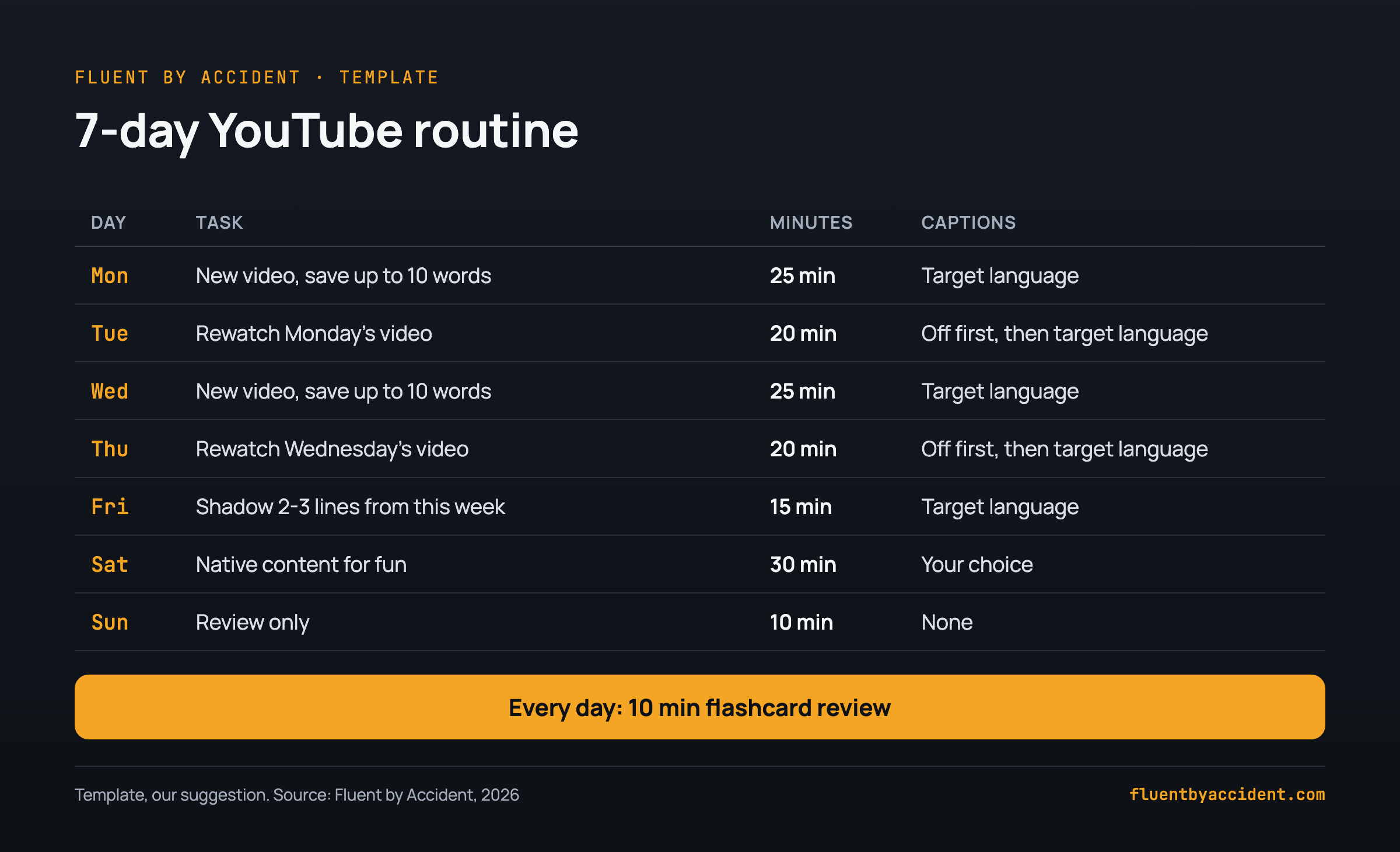
| Day | Task | Minutes | Captions |
|---|---|---|---|
| Monday | New video at your level, save up to 10 words | 25 | Target language |
| Tuesday | Rewatch Monday's video | 20 | Off first, then target language |
| Wednesday | Second new video, save up to 10 words | 25 | Target language |
| Thursday | Rewatch Wednesday's video | 20 | Off first, then target language |
| Friday | Shadow 2 to 3 lines: replay with j, repeat out loud | 15 | Target language |
| Saturday | Native content just for fun, no saving | 30 | Your choice |
| Sunday | Review only | 10 | None |
Copy this checklist:
- Pick this week's two videos on Sunday evening (one learner channel, one native creator).
- Check each video's caption menu: creator track, or "(auto-generated)" on clear audio.
- Set speed: 0.75x if the speaker is fast, 1x otherwise.
- Keep the shortcut table open: k, j, l, c, <, >.
- Save no more than 10 words per video, each with its sentence.
- Review your saved words for 10 minutes every day.
- On rewatch days, watch with captions off first.
- On Friday, shadow 2 to 3 lines out loud.
- On Saturday, watch anything you like and save nothing.
If you already follow the same method on Netflix, you can swap Saturday's native video for an episode there.
Does YouTube alone make you fluent?
No single source does. YouTube gives you listening input, which is one part of learning a language. On its own it does not train speaking or writing, and words you never review fade. The routine above adds review and a little speaking practice on purpose. For what studies say about learning with subtitles, read what the research says about subtitles.
Treat YouTube as your daily input habit, and pair it with spaced review, some speaking (a tutor, a language exchange or shadowing) and patience measured in months, not weeks.
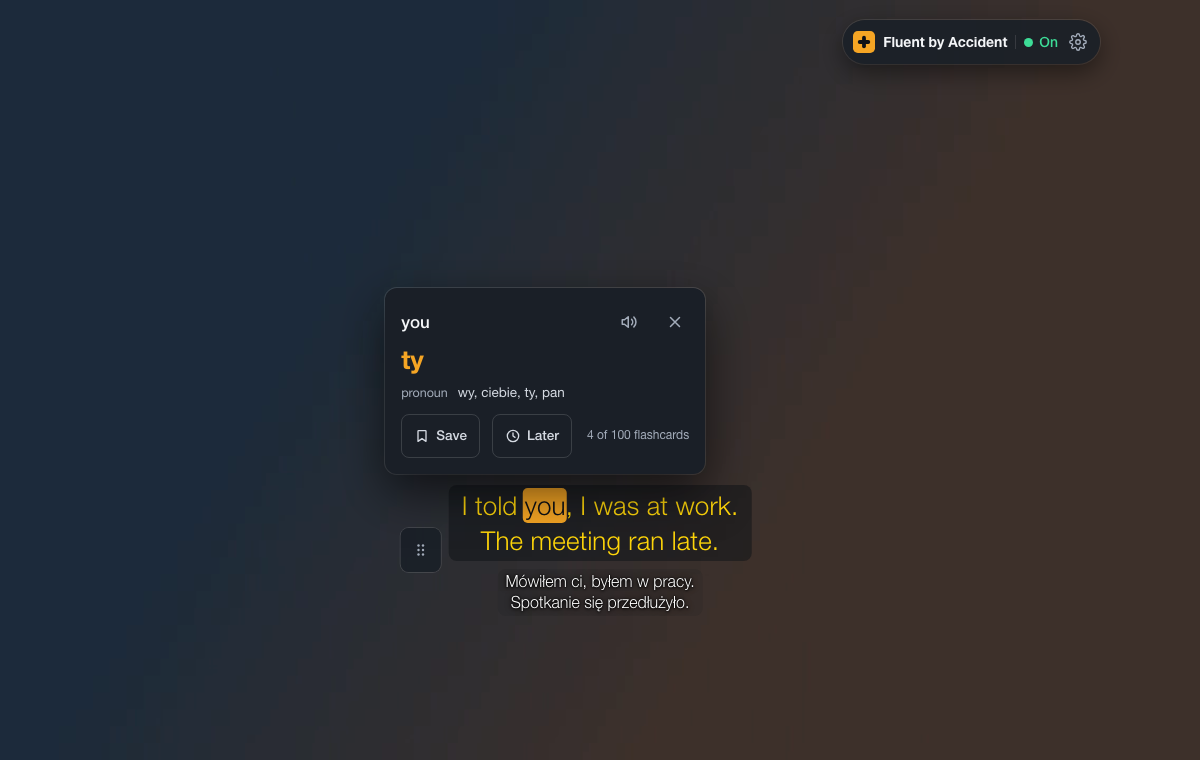
If you want both lines on screen while you watch, Fluent by Accident shows two subtitle lines on YouTube and lets you click a word to translate it and save it into flashcards; you can download the Chrome extension here.
FAQ
Can you learn a language just by watching YouTube?
YouTube can carry a large share of your listening practice, but watching alone is rarely enough. Video gives you input: real speech, accents and vocabulary in context. It does not make you speak, and words you look up once tend to fade without review. Learners who get the most out of YouTube pick videos at their level, use target-language captions, save a small number of words with their sentences and review them on a spaced schedule. Add some speaking, even shadowing a few lines out loud, and YouTube becomes a strong core habit rather than background entertainment.
Are YouTube auto-generated subtitles good enough to learn from?
Sometimes. YouTube's own help page says automatic captions "might misrepresent the spoken content due to mispronunciations, accents, dialects, or background noise," and that they may not appear when speakers overlap or the sound is poor. On a clear, single-speaker video they are often usable, but treat names, numbers and spelling with suspicion. Always pick a track that shows only the language name (a manual track) first in the Subtitles/CC menu, while machine captions are labelled "(auto-generated)." Never learn words from the Auto-translate option, which is machine translation of another track.
What speed should I watch YouTube videos at to learn a language?
Start at 1x if you follow most of the video, and drop to 0.75x when the speaker is fast. MosaLingua recommends the same 0.75x setting for fast speakers. Change it in the gear menu under Playback speed, or press < and > on a US keyboard (with Shift). Go back to 1x as soon as you can follow, since staying very slow for long changes the rhythm of the speech. Use 1.25x only for rewatching a video you already understand. Note that some smart TVs and streaming devices do not offer speed control at all.
Should I use subtitles in my target language or my native language on YouTube?
For learning, put the language you are studying on screen. Native-language subtitles let you understand the video without processing the foreign words, which makes it entertainment more than practice. If target-language captions alone are too hard, the video is probably above your level; pick an easier channel type, or use two lines with your native language as a backup you glance at only when stuck. Beginners can start with learner channels that already show both languages. As you improve, move to target-language captions only, and then to captions off on a first watch.
How many minutes of YouTube a day is enough for language learning?
There is no proven daily number, so think in routines instead. The plan in this guide uses about 20 to 30 minutes a day on most days: two new videos a week, a rewatch of each, one shadowing session, one free day of native content and 10 minutes of flashcard review daily. That load is small enough to keep for months, which matters more than any single long session. If you have more time, add another native video for fun rather than more saved words, so your review pile stays manageable.
How do I save words from YouTube videos?
Pause the video, look the word up and save it together with the full caption line and the video link. The sentence shows you how the word is used and makes the card easier to remember. Store it in a flashcard app with spaced repetition, such as Anki, or use a subtitle extension that saves words with one click. Keep it to about 10 words per video so daily review stays short. Review new words the same day or the next day, then let the spaced schedule take over.
Sources
- YouTube Help, "Keyboard shortcuts for YouTube," Google, undated living page, checked November 2, 2026: https://support.google.com/youtube/answer/7631406?hl=en
- YouTube Help, "Use automatic captioning," Google, undated living page, checked November 2, 2026: https://support.google.com/youtube/answer/6373554?hl=en
- YouTube Help, "Speed up or slow down YouTube videos," Google, undated living page, checked November 2, 2026: https://support.google.com/youtube/answer/7509567?hl=en
- Benny Lewis, "YouTube language learning," Fluent in 3 Months, first published November 2017, checked November 2, 2026: https://www.fluentin3months.com/youtube-language-learning/
- MosaLingua, "Learn a language with YouTube," undated (images 2019), checked November 2, 2026: https://www.mosalingua.com/en/?p=17411
- Nicole Baptista, "How to Learn Languages with YouTube," Lingopie, undated (images 2022), checked November 2, 2026: https://lingopie.com/blog/how-to-learn-languages-with-youtube/