How to Export Anki Decks and Keep Your Progress
Export an Anki deck as .apkg to keep scheduling, or as plain text/CSV to move cards into another app. What each format keeps, what gets lost, and how to move decks step by step.
To export an Anki deck in desktop Anki, go to File > Export, pick Anki Deck Package (.apkg), choose the deck and tick Include scheduling information: that file keeps your cards, media and review history for another Anki install or an app that reads .apkg. If the destination is not Anki-based, export Notes in Plain Text (or convert the .apkg to CSV) and expect to keep the words but restart the scheduling.
Below: which format fits which destination, what each drops, and a checklist so one wrong click does not cost you years of reviews.
Last checked: November 2026, against the official Anki manual (desktop Anki was not run for this guide).
How we tested: On 19 November 2026 we checked every export and import option below against the official Anki manual pages, read the source code of the Fluent by Accident web app importer to see exactly which fields survive, and ran a 100-note Spanish test deck (.apkg, 170 KB) through our free Anki to CSV converter. Desktop Anki was not run; menu wording is from the manual. Details are in the "How we tested" section further down.
How do you export an Anki deck? (step by step)
As the Anki manual on exporting puts it, "To export, click the File menu and choose Export." From there:
- Open desktop Anki and click File > Export.
- In the format menu, pick Anki Deck Package (*.apkg) for one deck, Anki Collection Package (*.colpkg) for everything, or Notes in Plain Text for a text file.
- Under Include, choose the deck you want. Child decks come along with their parent.
- Set the checkboxes (table below).
- Click Export and choose where to save the file.
These four boxes decide what ends up inside the file. Every description comes from the Anki manual.
| Checkbox | Ticked | Unticked |
|---|---|---|
| Include scheduling information | Review history and scheduling are exported | Anki assumes you are sharing the deck and removes all scheduling, including marked and leech tags |
| Include deck presets | Your deck options presets travel with the deck | Presets are not included in the file |
| Include media | Audio and images are bundled | The .apkg contains no audio, images or other media |
| Support older Anki versions | A legacy-format file is created for older clients | Modern format, which older Anki clients cannot read |
If you tuned your intervals and limits, Include deck presets is worth ticking when moving to your own second machine. Our guide to deck presets and settings explains what those presets contain. When you share a deck with someone else, leave presets and scheduling unticked so they start clean.
.apkg vs .colpkg vs plain text: which export format should you pick?
Three of Anki's export formats matter most for moving decks. The choice depends on where the cards are going, not on which one sounds more complete.
| Format | Contains | Scheduling | Media | What happens on import |
|---|---|---|---|---|
| .apkg (Anki Deck Package) | One deck plus its child decks: cards, notes, note types | Optional (checkbox) | Optional (checkbox) | Added to the existing collection; for notes imported before, the most recently modified version wins |
| .colpkg (Collection Package) | Your entire collection, all decks | Always included | Optional (checkbox) | Deletes and replaces every card in the destination Anki |
| Notes in Plain Text | Note fields only, separated by tabs, HTML embedded | No | No (only the file names inside fields) | Mapped field by field in the destination app |
The facts in this table are from the exporting chapter of the Anki manual: a packaged deck "consists of cards, notes, note types, and any sounds or images bundled up into a file ending with .apkg or .colpkg", and a .colpkg "contains all decks with scheduling included."
A quick rule of thumb:
- Moving one deck to another Anki profile, device or an .apkg-reading app: .apkg.
- Full backup or moving your whole Anki to a new computer: .colpkg.
- Moving words to a spreadsheet or a non-Anki app: plain text, or a converter that turns the .apkg into a clean CSV.
How to export an Anki deck with scheduling information (keep your progress)
Your review history is the expensive part of a deck. Every rating you pressed is what Anki's scheduler uses to space the next review, and newer schedulers lean on it even more, as our explainer on how FSRS uses your review history shows. Losing it means every mature card is treated as brand new.
To keep progress:
- File > Export > Anki Deck Package (.apkg).
- Tick Include scheduling information.
- Tick Include media if your cards have audio or images.
- Import the file into the other Anki install (File > Import, or double-click the file).
The Anki manual on importing packaged decks confirms that packages "may also contain scheduling information, which is useful if you want to transfer decks between devices or profiles."
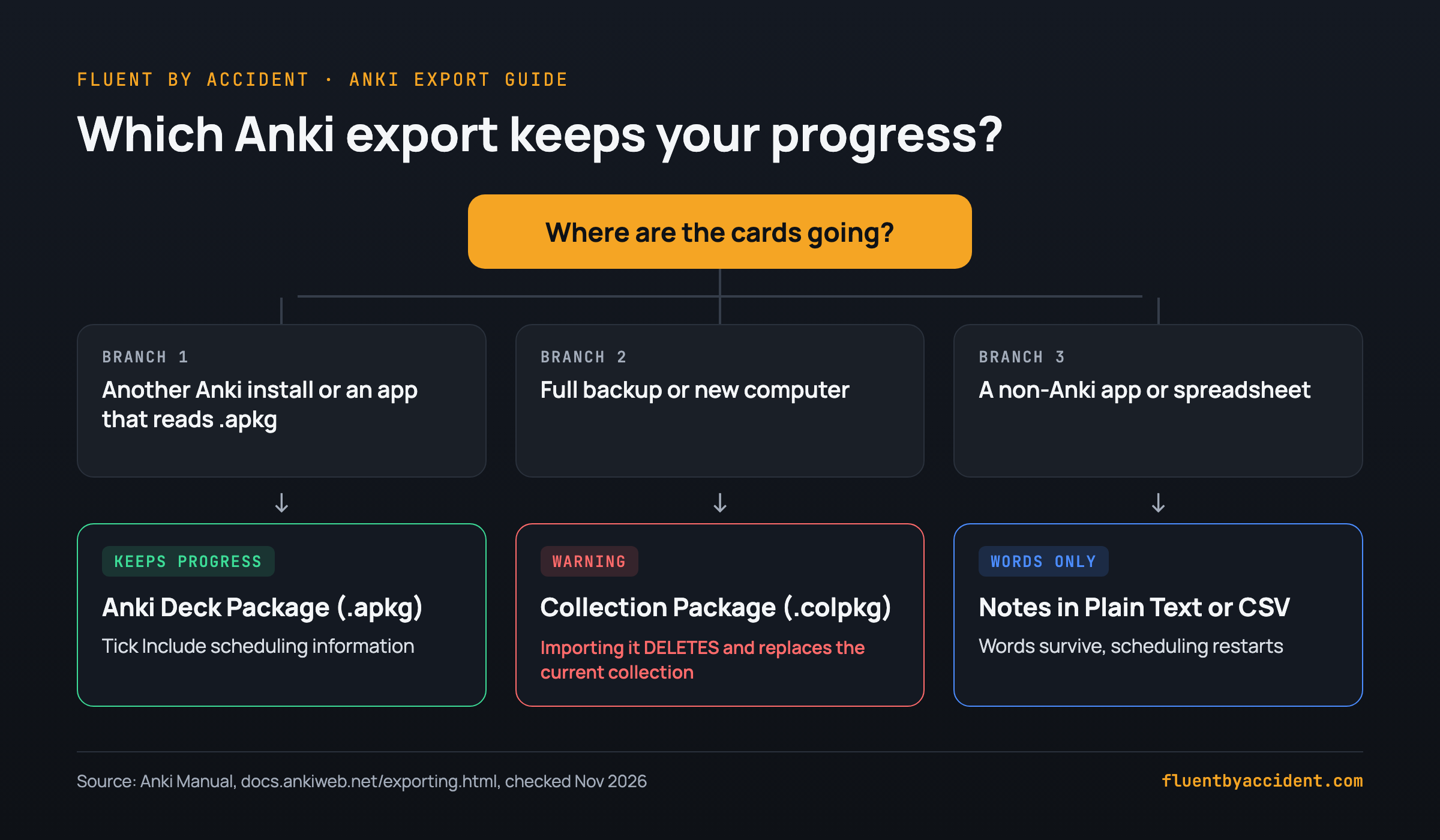
Warning: A .colpkg is not a bigger .apkg. The Anki manual is explicit: "If you import a .colpkg file, then all of your current cards in Anki will be deleted and replaced by the cards from the .colpkg file." Existing media is not deleted on import. Use it for full backups and fresh installs only, never to merge one deck into an existing collection.
Sometimes you want the opposite: the cards without the history. Maybe you are drowning in overdue reviews, or you downloaded a shared deck that still carries its author's progress. On Anki 23.10 and later, the import manual says you can leave Import any learning progress unselected, which also removes leech and marked tags. If a pile of overdue cards is the real problem, a reset is usually a heavier fix than needed; clearing an overdue backlog covers gentler options.
One catch when re-importing an updated deck: according to the same page, updating existing notes "is generally not possible if the note type is changed", for example when an extra field was added. Keep the note type identical on both sides if you plan to sync updates later.
How to export Anki to CSV or Excel (and clean HTML and sound tags)
For spreadsheets and non-Anki apps you need text. Anki's built-in route is File > Export > Notes in Plain Text, which, per the Anki manual, writes each note to a text file where "each field is separated by a tab."
The trap is in the next line of that manual: "the text is exported with all the HTML formatting embedded in it." The manual says the text is exported with HTML embedded; check your export dialog for an option to leave HTML out. If it is embedded, a simple vocabulary card can come out with tags such as <b>, <br> or <div> around the word, and audio fields show up as [sound:file.mp3] references rather than sound. In a spreadsheet, that is markup in every cell.
Three ways to clean it:
- Find and replace in your spreadsheet: remove
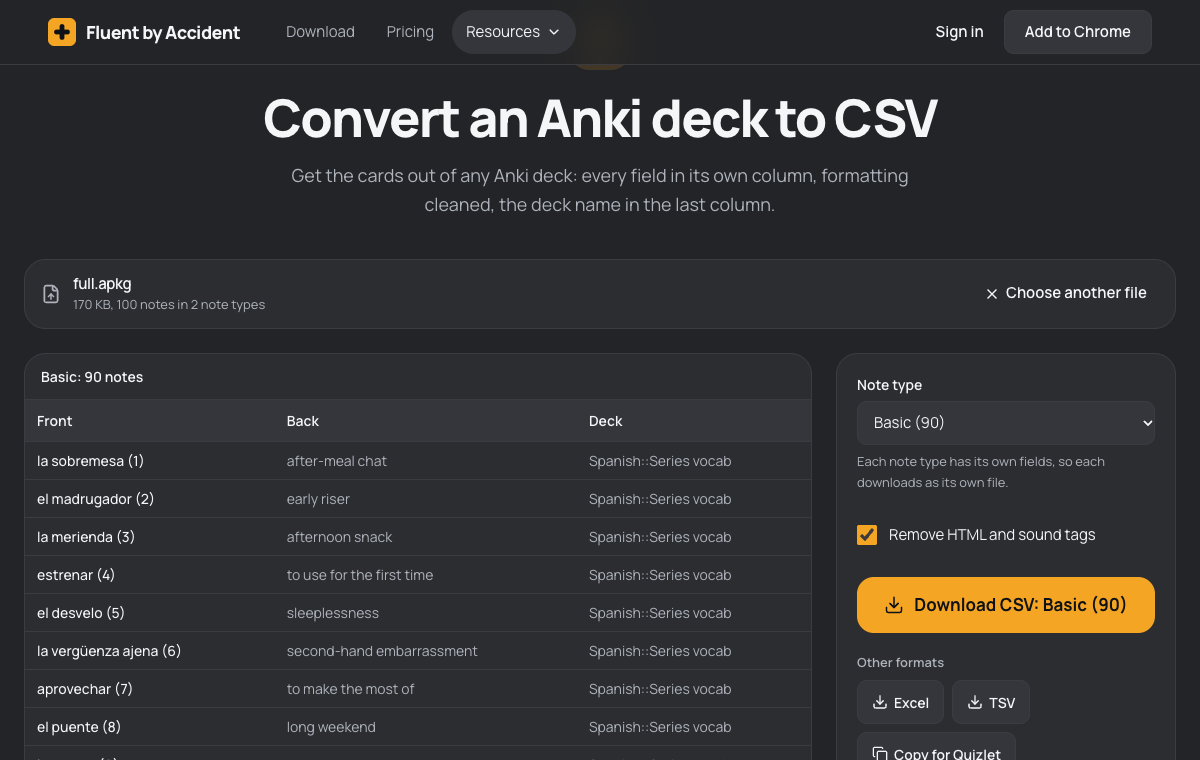
[sound:references and HTML tags with a regex. Fiddly with many note types. - Use a converter. Our free Anki to CSV converter opens an .apkg or .colpkg, lists every note type in it so you pick one, and removes "HTML formatting and [sound:] tags ... unless you choose to keep them." The page states "The file is read by your browser on your own device and never sent to a server." For a spreadsheet target, the Anki to Excel converter does the same.
- Re-import to Anki with Allow HTML in fields on, if the text file is going back into Anki. The text import manual notes you need that option "for HTML newlines to work."
Tip: To export only some cards, open Browse, select the notes you want, then choose Notes > Export Notes and pick Selected Notes. This is the subset route RemNote's Anki import guide describes.
What survives when you move an Anki deck to another app?
This is the question most export guides skip. The answer depends on the destination, not just the format you picked. The matrix below lists only what each source states; anything we could not confirm is marked "not confirmed". If you have not decided where to go yet, start with our guide to choosing which app to switch to, or see flashcard apps compared for language learners.
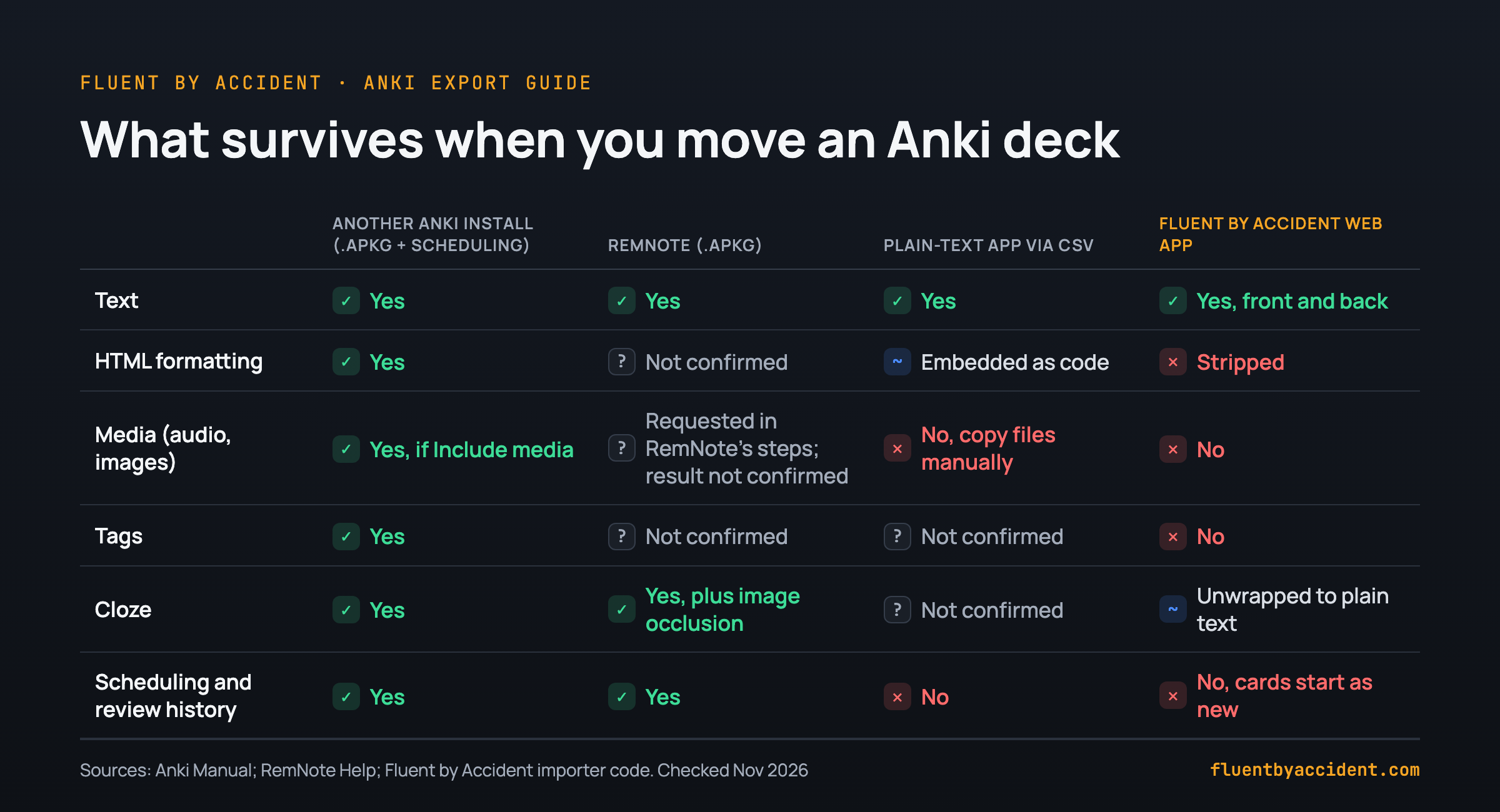
| What | Another Anki install (.apkg + scheduling) | RemNote (.apkg) | Plain-text app via CSV | Fluent by Accident web app (we make this) |
|---|---|---|---|---|
| Text | Yes | Yes | Yes | Yes, front and back |
| HTML formatting | Yes | Not confirmed | Embedded as code | Stripped |
| Media | Yes, if Include media | Requested in RemNote's steps; result not confirmed | No, files must be copied by hand | No |
| Tags | Yes | Not confirmed | Not confirmed | No |
| Cloze | Yes | Yes, plus image occlusion | Not confirmed | Unwrapped to plain text |
| Scheduling and review history | Yes | Yes | No | No, cards start as new |
Where each column comes from:
- Another Anki install: the .apkg carries cards, notes, note types and media, plus scheduling when ticked (Anki manual).
- RemNote: its help center says you "can import your flashcards and review history from Anki", using .apkg with scheduling and media ticked, and that it handles "basic flashcards, cloze flashcards, image occlusion flashcards ... and most custom note types" (RemNote Help).
- Plain-text apps: text export carries fields with HTML embedded and no scheduling (Anki manual); media has to be moved separately, as the text import manual describes for the Anki side.
- Fluent by Accident: from our own importer code, covered in the next section.
Apps built to read .apkg can keep your history; apps that take text keep your words and restart the scheduling.
How we tested
On 19 November 2026 we checked each claim against primary pages, our own code and one converter run.
| What we checked | How | Result |
|---|---|---|
| Export formats and the four checkboxes | Anki manual, exporting chapter | Notes in Plain Text, .apkg and .colpkg documented; .apkg has 4 options, .colpkg 2; wording quoted above |
| Import behavior and "Import any learning progress" | Anki manual, packaged decks and text files chapters | Option exists from Anki 23.10; media must be copied into collection.media for text imports |
| What RemNote keeps | RemNote help center article | Review history, cloze and image occlusion stated |
| What the Fluent by Accident importer keeps | Read the web app import source code | 2 fields per card (front, back); HTML, [sound:] and media dropped; cloze unwrapped; no intervals, due dates, tags or history |
| Importer limits | Same source code | 300 MB unpacked file limit |
| Test deck in our converter | Loaded a 100-note Spanish test .apkg into /tools/anki-to-csv | 170 KB file; 100 notes in 2 note types listed; Basic note type: 90 notes as Front, Back and Deck columns with HTML and sound tags removed |
| Free converter pages | Loaded anki-to-csv, anki-to-quizlet, anki-to-excel | All 3 responded normally (HTTP 200) |
If a package unpacks to more than 300 MB, the importer tells you to "Export just the decks you need, without media, and drop the new file." We did not run desktop Anki for this guide, so we have no measured export times or file sizes.
Note: We did not test Quizlet's importer or any mobile Anki app for this guide, so neither appears in the matrix. Menu paths here are for desktop Anki.
Before you move: a 6-step migration checklist
Run this list once before any move. It takes a few minutes and protects the one thing you cannot rebuild: your review history.
Checklist:
- Back up everything first. Export a .colpkg of your whole collection and keep it somewhere safe. Never import it into a profile that already has cards you want to keep.
- Tick Include scheduling information if the destination is Anki or an app that reads Anki history. Untick it only when sharing a deck.
- Untick Include media when size is the problem or the destination ignores media anyway. You keep text and lose audio and images.
- Tick Support older Anki versions if the destination reports it cannot read the file.
- Export one note type at a time for text destinations, so columns line up in the CSV. Use Browse > Notes > Export Notes for a subset.
- Keep Anki installed until you have checked the import. Open the new app, count the cards, review a few, and only then retire the old deck.
Step 1 matters most because of how the Anki manual describes .colpkg imports: they delete and replace. A backup you never need costs some disk space; a missing one can cost years of reviews.
If your next stop is learning words from shows and videos, the Fluent by Accident web app imports Anki, CSV, Excel and Kindle vocab.db files as fresh cards on its own spaced repetition scheduler.
FAQ
Does exporting an Anki deck keep my progress?
Only if you export as .apkg or .colpkg with scheduling included. In the .apkg export dialog, Include scheduling information must be ticked; if it is unticked, Anki removes "the entire scheduling information, including marked and leech tags", according to the Anki manual. A .colpkg always includes scheduling. Plain text exports never carry it. Even with a correct export, progress only survives when the destination reads Anki history, such as another Anki install or RemNote. Apps that import text or CSV keep your words but treat every card as new.
Can I move my Anki deck to Quizlet?
Yes, but as text, not as a deck with progress. Quizlet is not an Anki-based app, so plan on moving term and definition pairs rather than an Anki package. Export Notes in Plain Text from Anki and clean out HTML and sound tags, or use our free Anki to Quizlet converter, which reads the .apkg in your browser. Expect to lose audio, images and all scheduling: different flashcard apps track reviews in their own way, so your review history stays in Anki. We did not test Quizlet's own importer for this guide.
What is the difference between .apkg and .colpkg?
An .apkg is an Anki Deck Package: one deck plus its child decks, with scheduling and media optional. When imported, it is added to your existing collection. A .colpkg is a Collection Package: every deck you have, always with scheduling. The Anki manual warns that importing a .colpkg deletes all current cards and replaces them with the file's contents. Use .apkg to share or move a single deck, and .colpkg only for full backups or setting up Anki on a new computer. Mixing them up is an easy way to lose cards, because a .colpkg import replaces everything.
How do I export only some cards from an Anki deck?
Open the Browse window in desktop Anki and search or filter until you see the notes you want. Select them, then choose Notes > Export Notes and pick Selected Notes as what to export, as described in RemNote's Anki import guide. You can then choose any format: .apkg to keep the cards in Anki form, or plain text for a spreadsheet. This is also the cleanest way to export one note type at a time, which keeps the columns consistent when the file ends up in a CSV or another app.
Why does my exported Anki file show HTML code or broken accents?
Anki writes plain text exports "with all the HTML formatting embedded" so the text can be imported back into Anki with formatting intact (Anki manual). That is why you see tags like <br> and [sound:...] references in the file. As our converter page notes, the file often opens with broken accents in Excel, usually an encoding mismatch. Import it through Excel's text import with UTF-8 chosen, strip the tags with find and replace, or use a converter such as our Anki to CSV tool that removes HTML and sound tags for you.
Can I import an Anki deck without someone else's scheduling?
Yes. On Anki 23.10 and later, the import dialog has an option called Import any learning progress. Leave it unselected and Anki removes the scheduling information during import, along with leech and marked tags, according to the Anki manual on packaged decks. This is useful when a shared deck was exported with its author's progress, or when you want a fresh start on your own old deck. On older Anki versions the option is not there, so ask for a copy exported with Include scheduling information unticked.
Sources
- Ankitects. "Exporting." Anki Manual. https://docs.ankiweb.net/exporting.html (checked 19 November 2026)
- Ankitects. "Packaged Decks." Anki Manual, Importing. https://docs.ankiweb.net/importing/packaged-decks.html (checked 19 November 2026)
- Ankitects. "Text Files." Anki Manual, Importing. https://docs.ankiweb.net/importing/text-files.html (checked 19 November 2026)
- RemNote. "Importing from Anki." RemNote Help Center. https://help.remnote.com/en/articles/6751471-importing-from-anki (checked 19 November 2026)
- Fluent by Accident. "Anki to CSV converter." https://fluentbyaccident.com/tools/anki-to-csv (checked 19 November 2026)
- Fluent by Accident web app importer source code (anki.ts, flashcard-import.ts, flashcards.ts), reviewed 19 November 2026